Numbers and conversions
See how each post did on the board and in the review, and use tracking links to see which posts brought inquiries and deals.
After this chapter: you know which posts work and what to take from them next time.
- Step 1
Look at the board
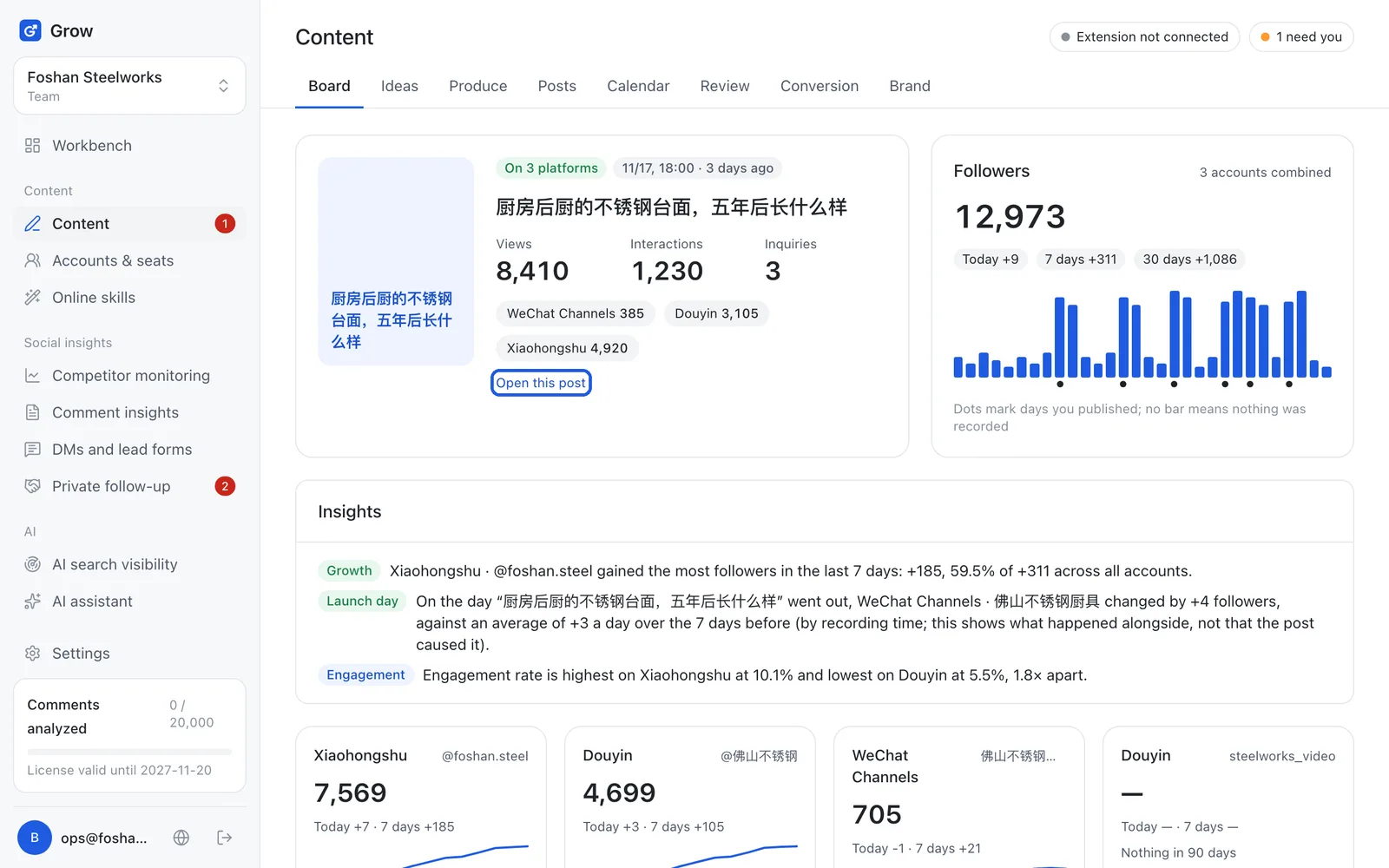
Click "Content". The first tab is the "Board". It shows the latest post's views, engagement (likes, comments, saves) and inquiries (people asking for a price), each account's follower trend, and what needs you today.
- Step 2
Get numbers into the review
Click "Review" at the top. Every published post is listed. Numbers can come in three ways: Extension read-back: in Chrome, open the post management page of the Xiaohongshu or Douyin creator centre, then click "Read numbers" on the "Publish" tab of the extension side panel Enter by hand: click "Enter numbers" next to the post and copy the figures from the platform Paste a table: copy a table from a spreadsheet, paste it in and click "Read this table"
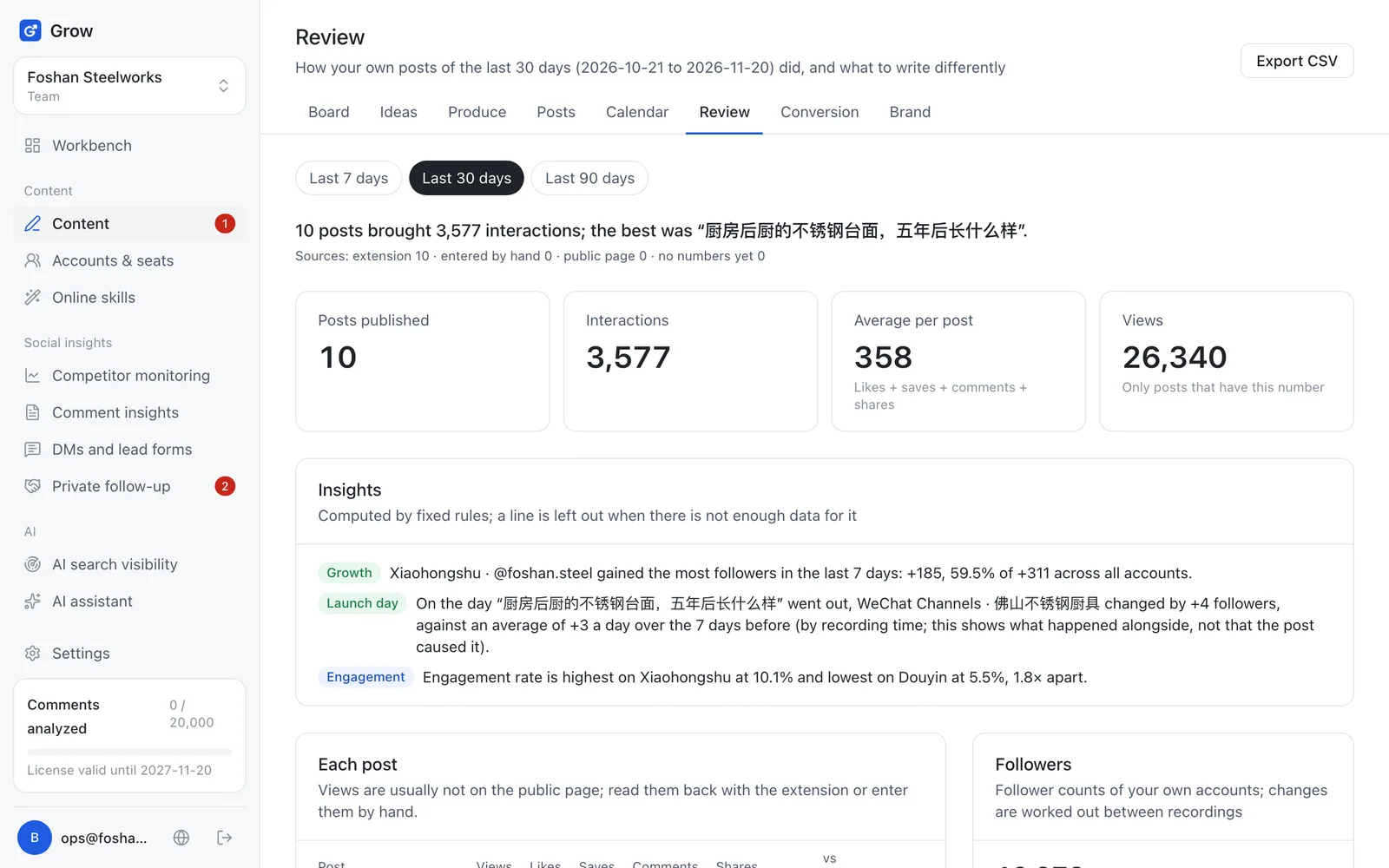
Tip: Views are usually not visible on public pages, so read them back with the extension or enter them by hand.
- Step 3
Record follower counts every few days
On the review page, under "Followers", pick the account, type today's follower count and click "Record". Do it every few days (once or twice a week is enough) and you will see the growth trend. "Same-age comparison" on the page means: this post's numbers on day 1, 3 and 7 after publishing, compared with the same day of the account's previous post, so a one-day-old post is never compared with a week-old one. For it to show numbers, read back or enter the numbers on day 1, 3 and 7 after publishing; with a group bot, the 9am message tells you which posts reached those days.
- Step 4
Let the AI find rules in the numbers
Once at least 4 posts have numbers, click "Suggest rules from the numbers". The AI compares the best and worst posts and suggests writing rules. For the ones that make sense, click "Add to brand profile". Every new draft and edit will follow them.
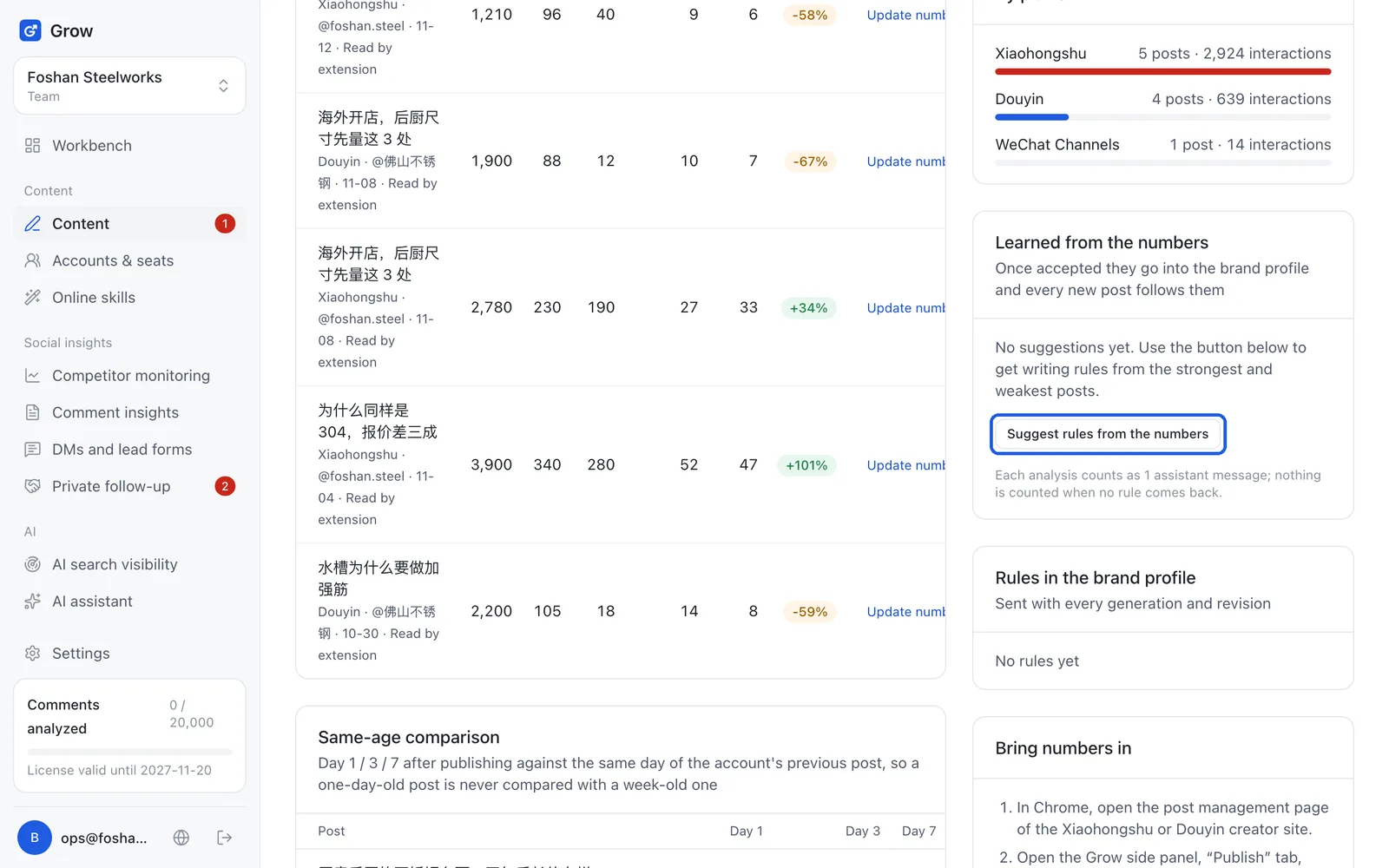
Tip: Each analysis counts as 1 assistant message. No suggestion, no charge.
- Step 5
Create an inquiry form
To know which post brought an inquiry, you first need a form: the small page where a customer leaves their phone number after clicking your link. Open "DMs and lead forms → Lead forms", click "New form", fill in the title, link name, contact fields and consent text, and click "Create form".
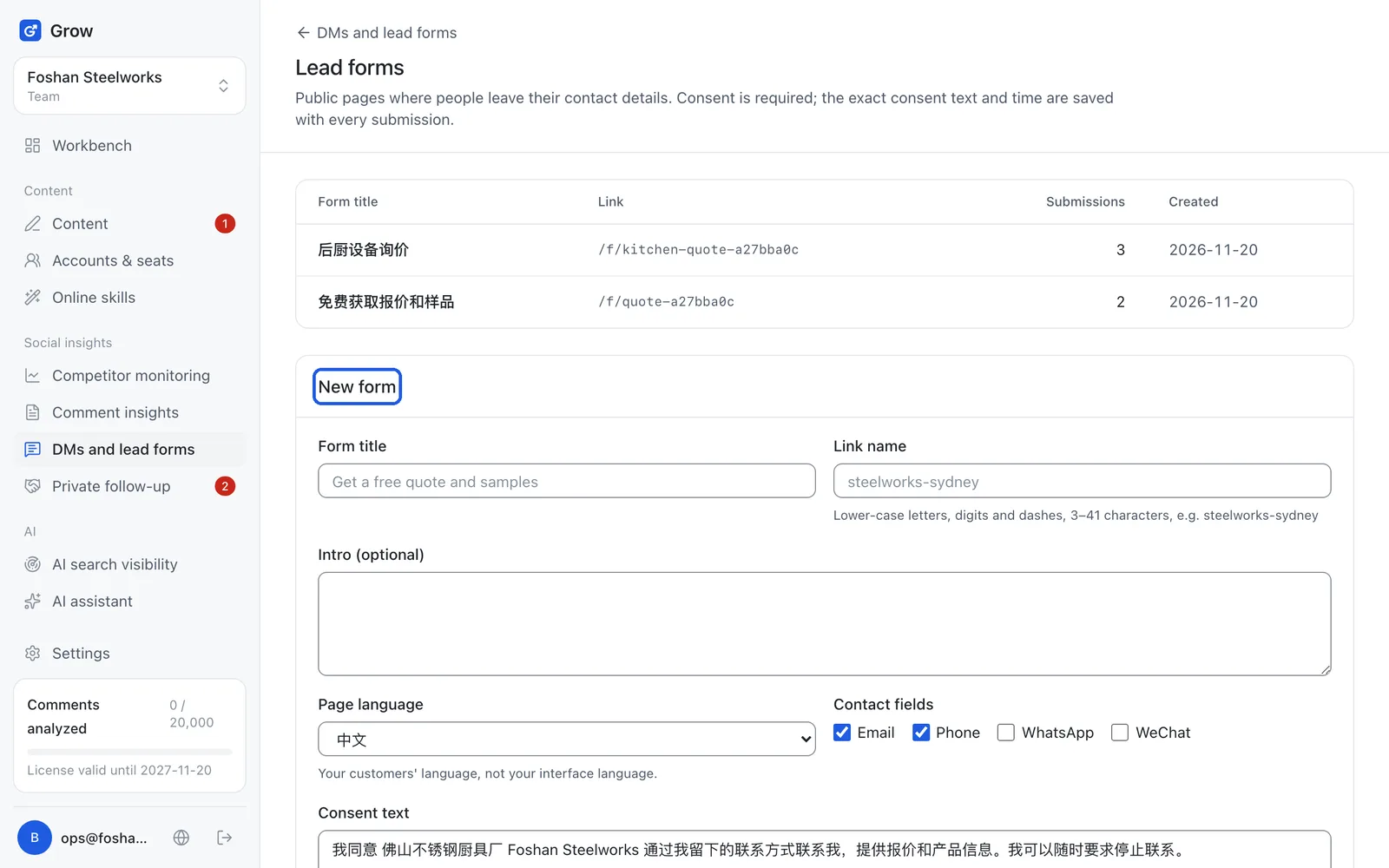
Tip: Set the page language to your customers' language, not your interface language.
- Step 6
Create a tracking link and put it in a post or profile
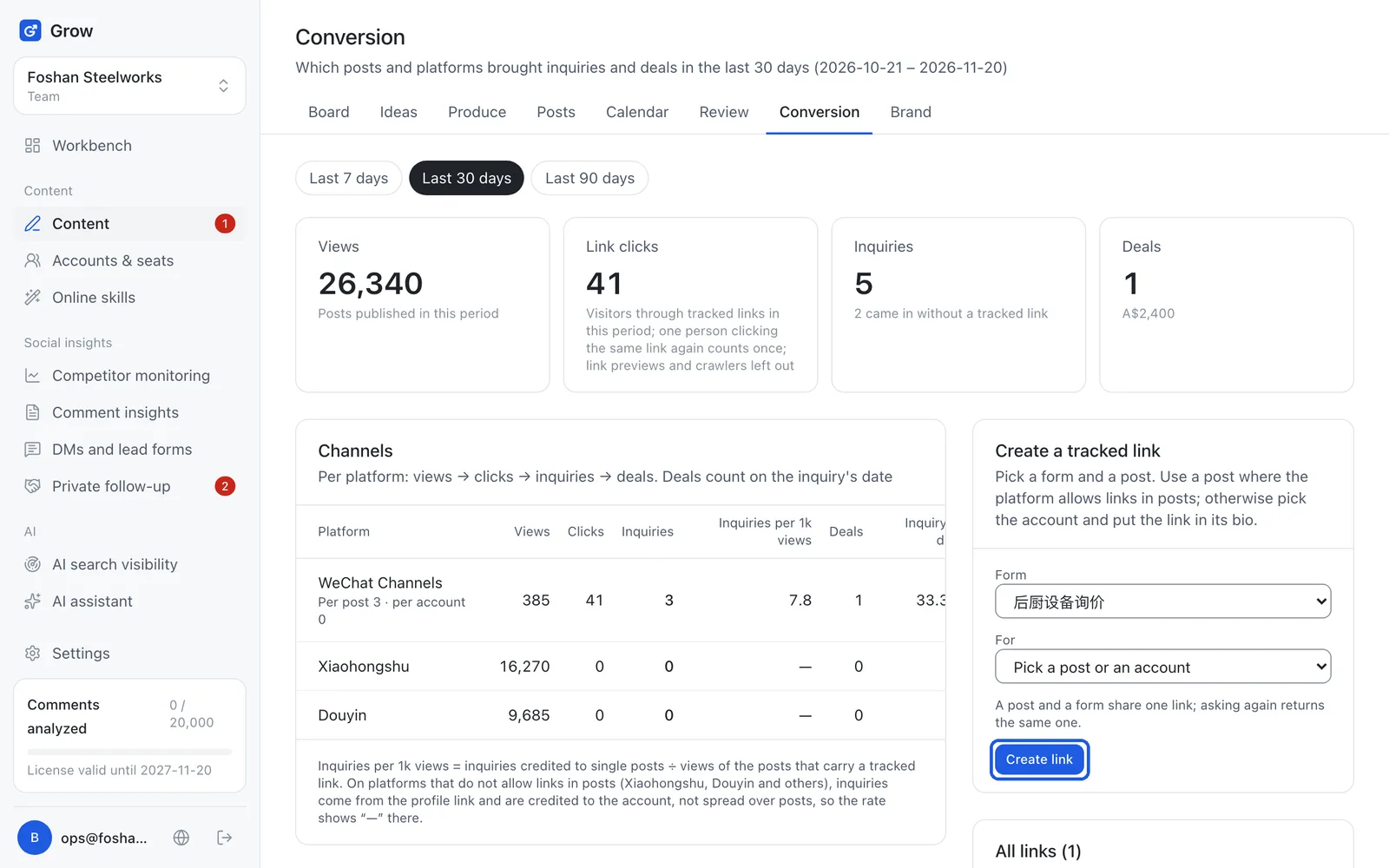
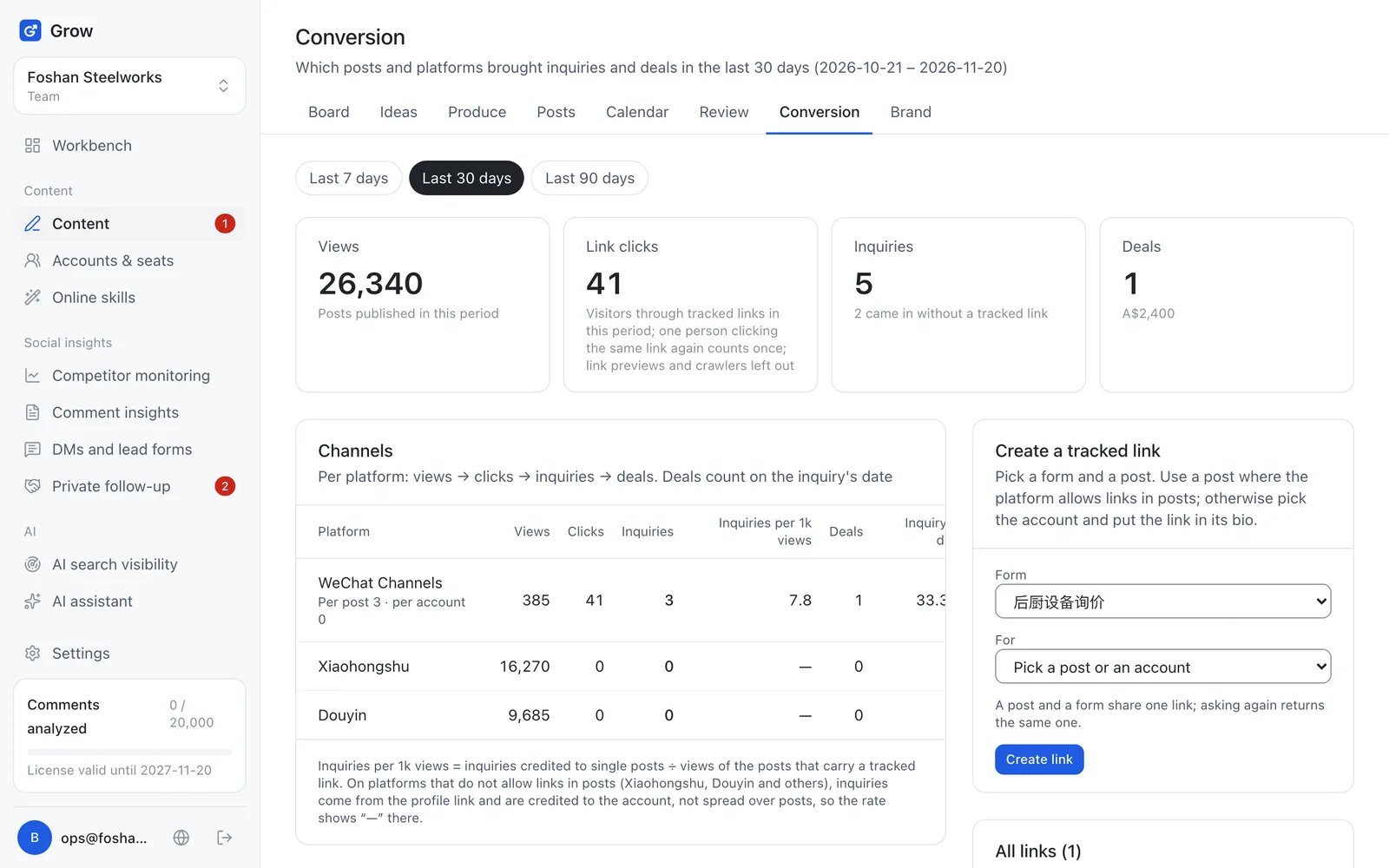
A tracking link is a link with its own code: when a customer clicks it and fills in the form, you can see which post they came from. Go back to the "Conversion" tab under "Content". Under the tracking link section, pick the form, then a post or an account profile, and click "Create link". On platforms that allow links in posts, put it in the post. On platforms like Xiaohongshu and Douyin that do not, pick the account and put the link in the profile bio. Share the tracking link, not the form's own link: the tracking link opens your form and also tells you which post the customer came from. The conversion page also shows "Inquiries per 1k views": how many people asked for every 1,000 views.
- Step 7
Click "Mark as deal" when you close one
When someone fills in the form through the link, it counts as an inquiry on the conversion page. When the deal is done, click "Mark as deal"; the amount is optional. The conversion page adds it up by platform: views, clicks, inquiries, deals.
Still stuck?
Message @JamesAI on X with a screenshot and we will take a look.