Grow Assistant · browser extension
Install the Grow Assistant in three minutes
The Grow Assistant is Grow's Chrome extension. When a post is due it fills the post into the Xiaohongshu or Douyin creator page, reads views and interactions back into Grow, and shows drafted DMs next to TikTok and Instagram. It never presses Publish or Send for you.
A zip file of about 100 KB. Then follow the steps below to add it to Chrome.
Do you need it?
- You post to Xiaohongshu or Douyin on a computer and want Grow to fill in the title, text and images: yes.
- You want views, likes and comments read back into Grow's review: yes.
- You answer DMs on TikTok or Instagram on the web: yes.
- You only post to YouTube, Google Business Profile, Instagram or X (Grow posts there through the official API) or only post from your phone: no.
Before you start: You need a computer with Google Chrome. Microsoft Edge works too: use edge://extensions instead of chrome://extensions below.
- Step 1
Download the package
Click "Download Grow Assistant" above. Your browser saves a file called grow-extension.zip, usually in Downloads.
- Step 2
Unzip it
Mac: double-click the zip and a grow-extension folder appears next to it. Windows: right-click the zip and choose Extract All. Keep the folder somewhere it will not be deleted, such as Documents. Do not move or delete it after installing, or the extension stops working.
- Step 3
Open the extensions page
Type chrome://extensions into Chrome's address bar and press Enter. Links to this address do not open; type or paste it.
chrome://extensions - Step 4
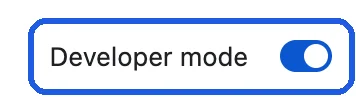
Turn on Developer mode
At the top right of the page, switch Developer mode on. A few buttons appear at the top left.
- Step 5
Load the extension
Click "Load unpacked" at the top left, select the grow-extension folder you unzipped (the folder itself, no need to open it) and click Select.

- Step 6
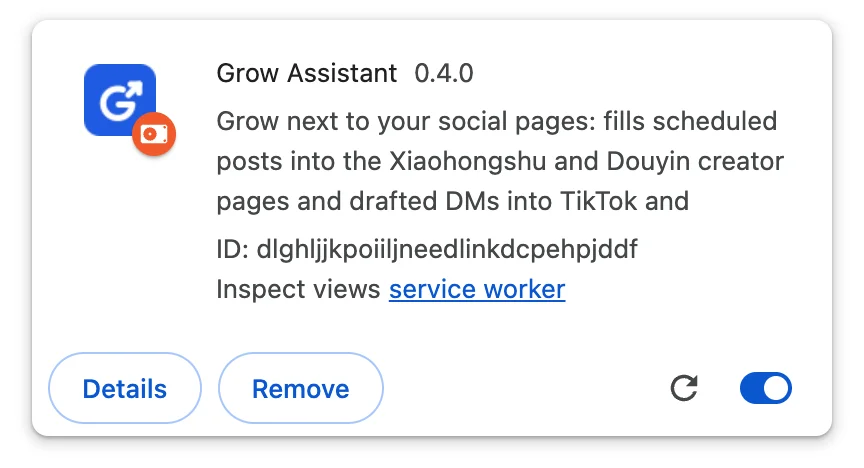
Check it is installed
A "Grow Assistant" card appears with its switch on (blue). That is it.
- Step 7
Pin it and open the side panel
Click the puzzle icon to the right of the address bar, find Grow Assistant and click the pin, so the blue G icon stays in the toolbar. Click the icon to open the Grow Assistant side panel.
- Step 8
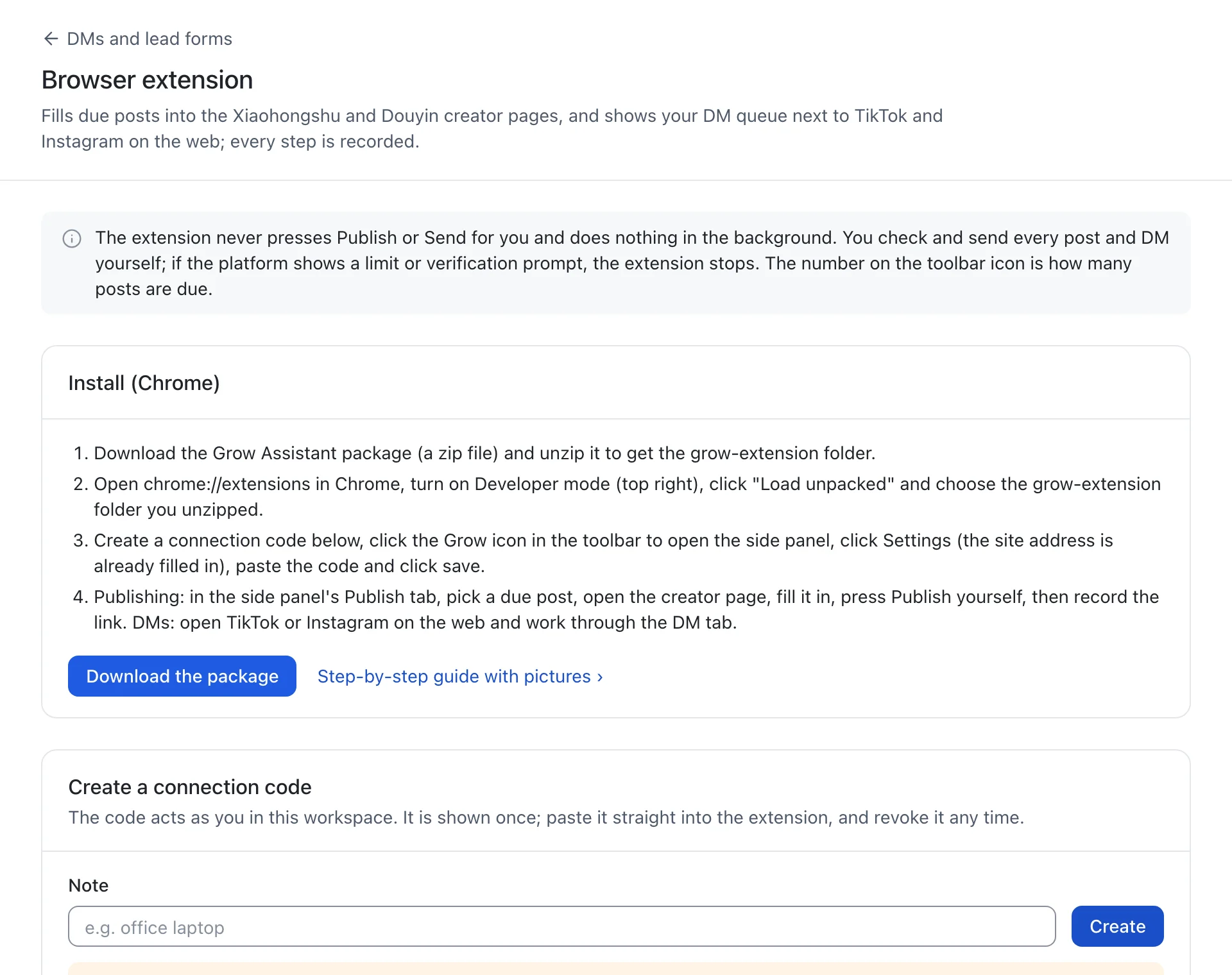
Create a connection code in Grow
Sign in to Grow, open DMs and lead forms → Browser extension (the publishing calendar links there too) and click Create. The code is shown only once, so keep the page open.
- Step 9
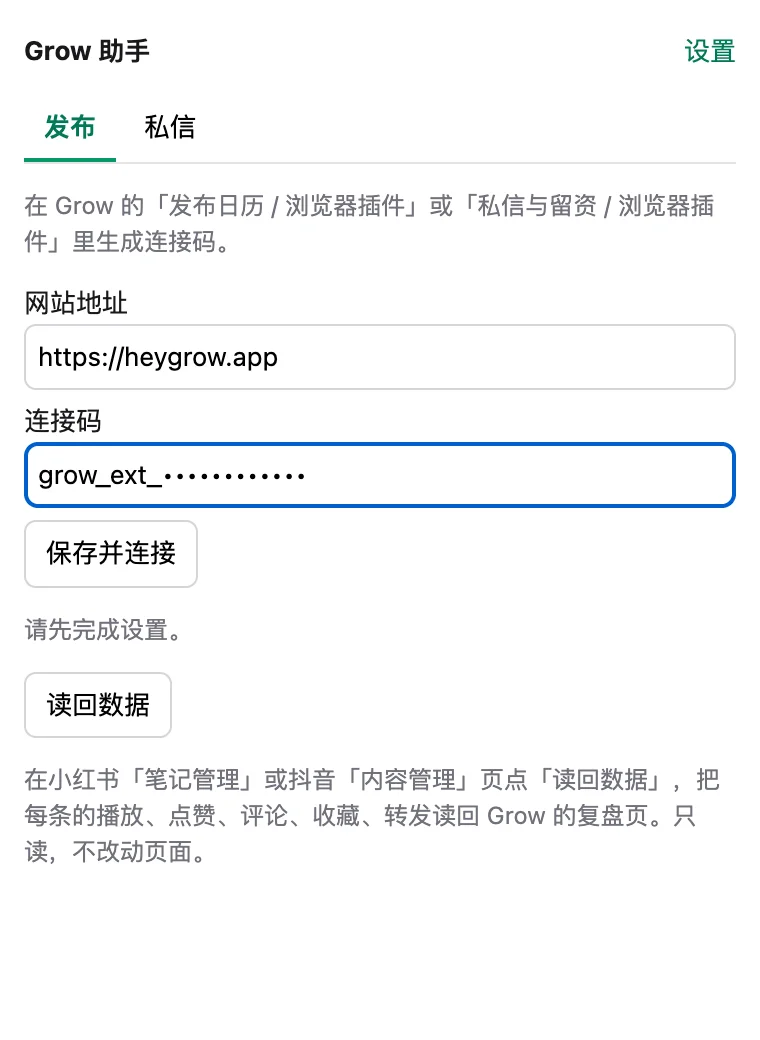
Connect
Back in the side panel, click Settings at the top right. The site address is already https://heygrow.app; paste the connection code below it and click save. When you see your due posts, you are done.
Screenshots are from Chrome; the look may differ slightly between versions.
Using it
- Posting: when a post is due it is listed under Publish in the side panel. Open the publish page, click fill, check it, press Publish yourself and record the link.
- Reading results: open Xiaohongshu's note manager or Douyin's content manager and click "Read back" in the side panel.
- DMs: open TikTok or Instagram on the web and work through the DM tab.
Questions
- Why Developer mode? Is it safe?
- The Grow Assistant is not in the Chrome Web Store yet, so it is installed with "Load unpacked", which needs Developer mode. It only works on the Xiaohongshu and Douyin creator pages, TikTok, Instagram and heygrow.app, and never presses Publish or Send for you.
- Chrome suggests turning off developer-mode extensions. What now?
- If you see that prompt, dismiss it and keep the extension; the Grow Assistant keeps working.
- How do I update it?
- Download the new package from this page, replace the old grow-extension folder with the new one, open chrome://extensions and click the reload button on the Grow Assistant card.
- New computer, or stopping?
- Revoke that computer's connection code on Grow's Browser extension page, and click Remove on the Grow Assistant card in chrome://extensions.
- Installed, but the side panel says it is not connected?
- Check the code was copied in full (it starts with grow_ext_) and the site address is https://heygrow.app. The code is shown only once; if it is lost, create a new one in Grow.
Stuck?
Message us on X @JamesAI with a screenshot and we will take a look.