Schedule and publish
Put approved posts in the calendar, confirm them before their time, and publish them the way each account is set up.
After this chapter: your posts go out on time and their links are recorded for review.
- Step 1
Open the calendar
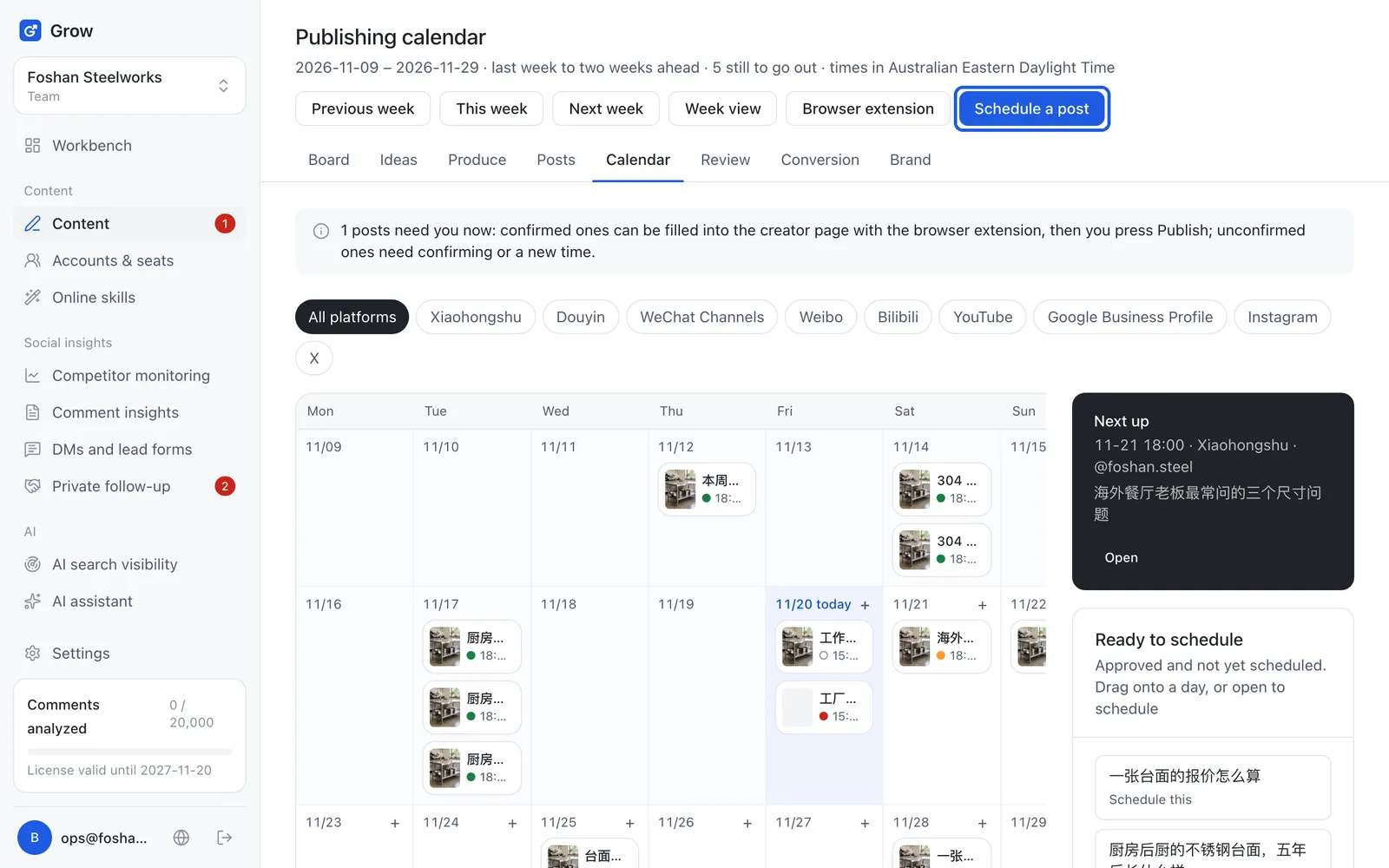
Click "Content", then "Calendar" at the top. By default it shows three weeks (last week to two weeks ahead), with a coloured dot for each post's status (see the legend). On the right, "Ready to schedule" lists approved posts that have no time yet.
- Step 2
Schedule a post
Click "Schedule a post" (or "Schedule this" on a post in the ready list). Pick the account and the time, choose the post under "From the content library", and click "Schedule". Open it and its status is "To confirm" (shown as "Planned" on the calendar).
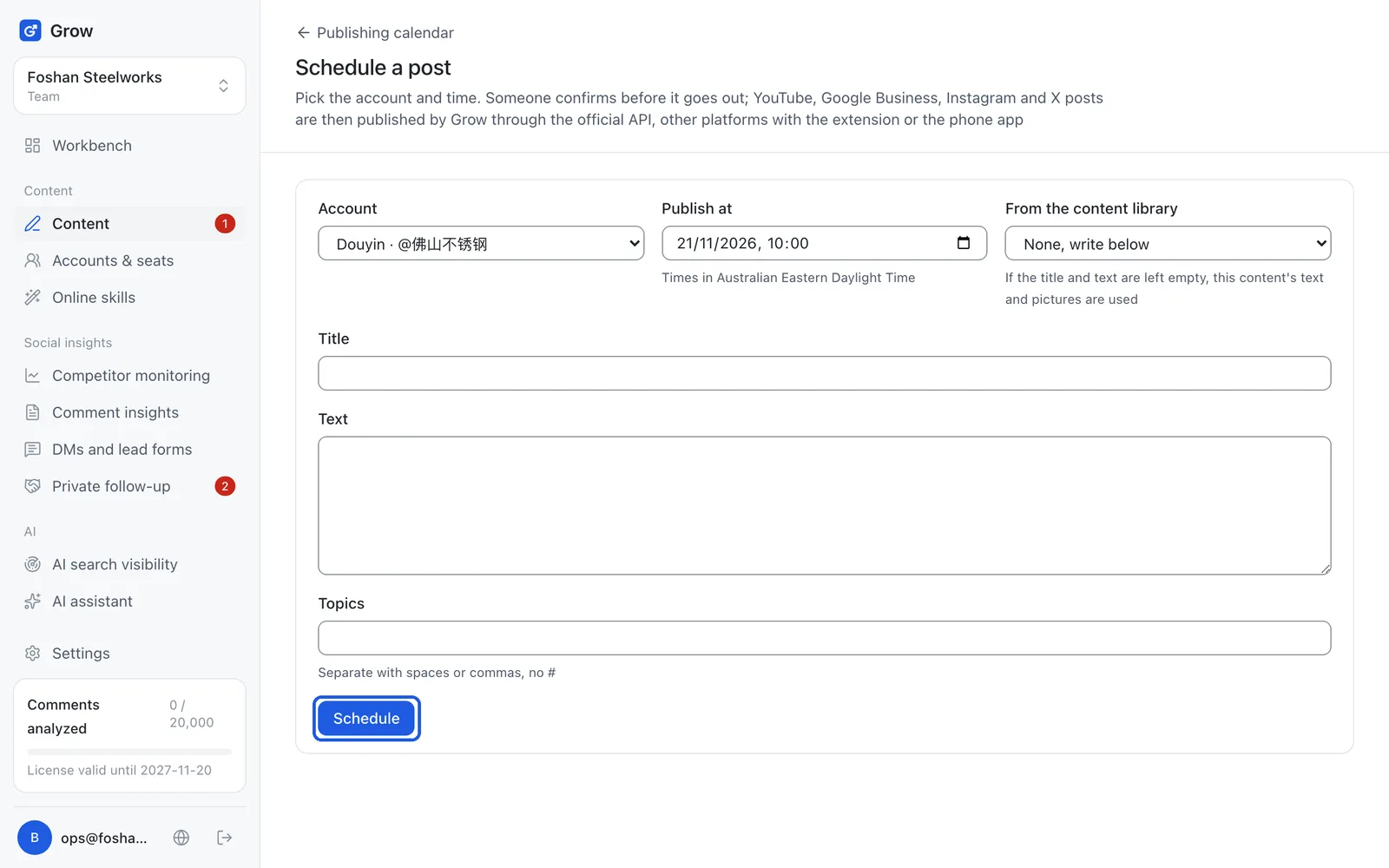
Tip: Times follow the workspace's time zone, which the page names.
- Step 3
Click "Confirm" before its time
Open the post in the calendar and click "Confirm". Grow runs the compliance check once more. A post that is not confirmed never goes out. 30 minutes before, the workbench and your group bot remind you.
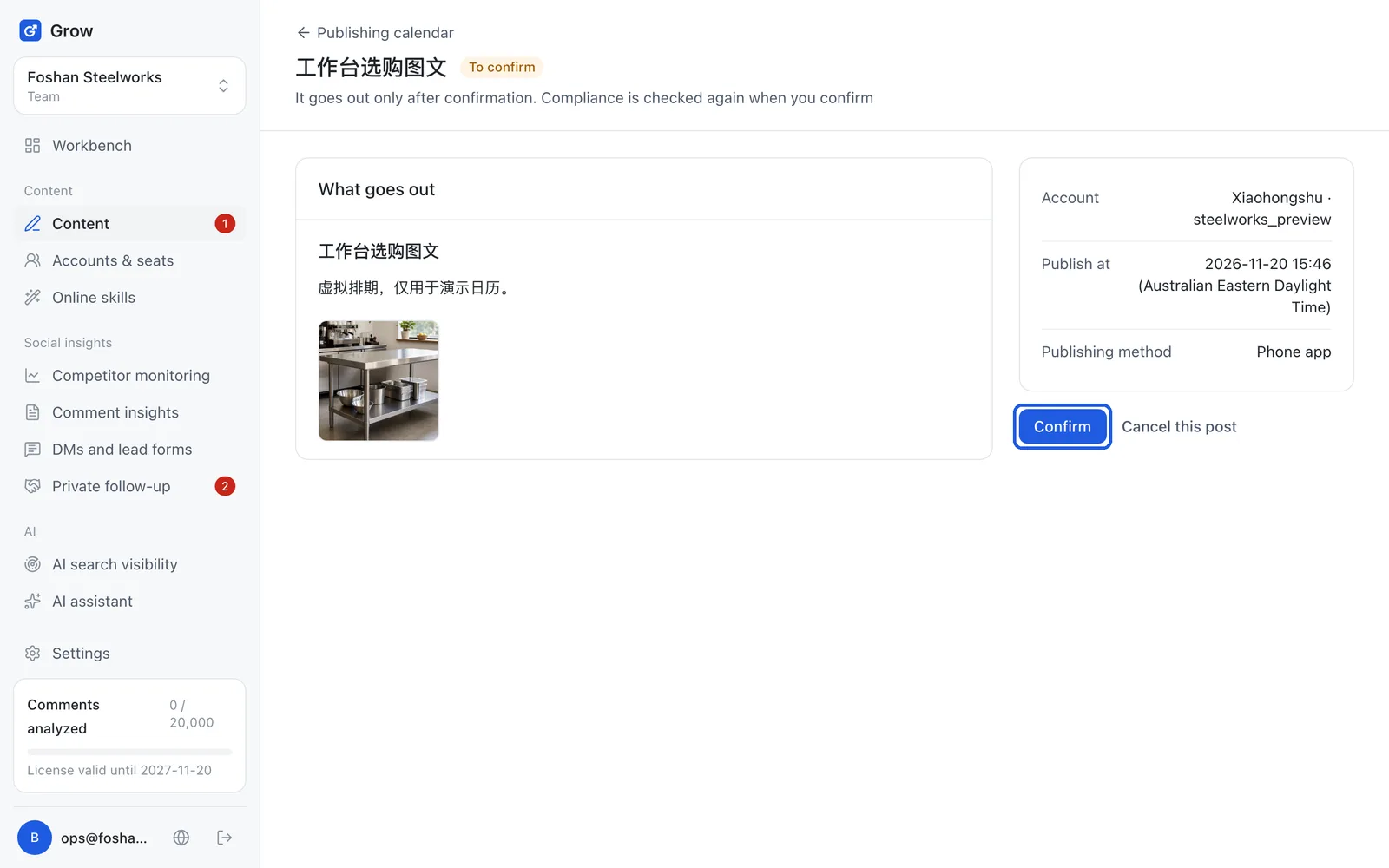
Tip: On the workbench you can confirm all of today's posts at once.
- Step 4
YouTube, Google Business, Instagram, X: it posts itself
These platforms use the official API. Once confirmed, Grow publishes the post at its time, nobody needs to press publish, and the link appears in the calendar. You do not need to do anything.
Tip: Instagram and Google Business wait for the platforms to approve Grow's publishing access; until then their buttons in "Accounts & seats" say "Under review", and you can use extension-assisted publishing.
- Step 5
Extension-assisted: open the creator page
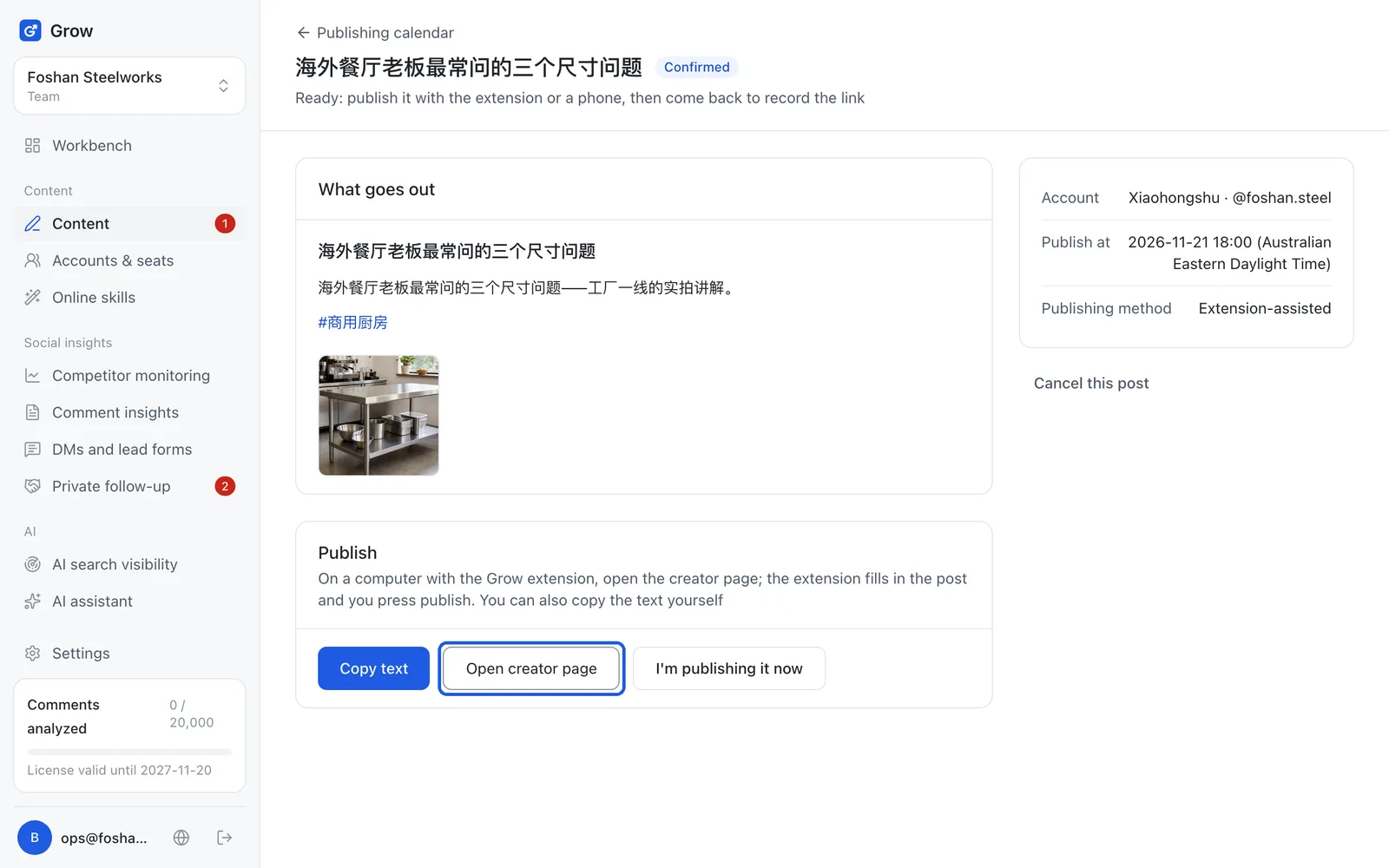
At its time, on the computer with the extension, click "Open creator page", or click the post under "Publish" in the extension side panel. The extension fills in the title, text and pictures. Check it, then press the platform's publish button yourself. Then back in Grow, click "I'm publishing it now".
- Step 6
After posting, come back and "Record link"
The post link box only appears after you click "I'm publishing it now". On the platform use "Share → Copy link" on the post, paste it into the post link box and click "Record link". Its numbers then go into the review. If what you copied is a whole paragraph (title, address and "open the app" text), just paste all of it; Grow finds the link inside. The phone app works the same way: copy the text, save the pictures, post on your phone, then come back and paste the link.
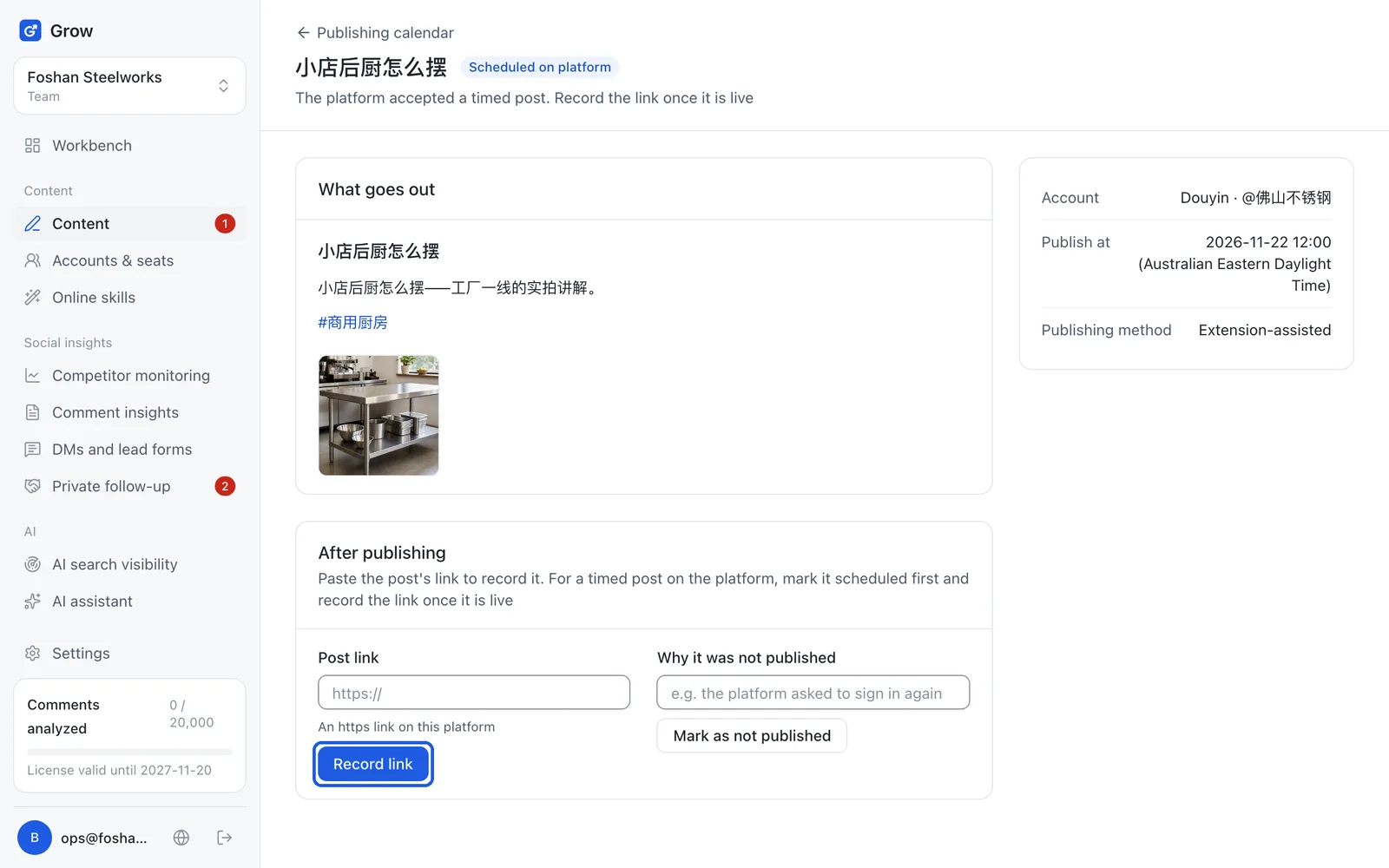
Tip: If you added the profile link of a Douyin or Xiaohongshu account in "Accounts & seats", Grow finds the post after you publish and records it on its own, usually within 15 minutes. If you used the platform's own scheduling, click "Scheduled on the platform" first; it is recorded the same way once it goes public.
- Step 7
What to do when it says "Not published"
"Not published" means the post did not go out, and the reason is shown below it. Read the reason, fix it (for example re-authorise the account), click "Schedule again" and pick a new time. If publish had already been pressed for this post, first check on the platform that it really is not there, and tick "I checked on the platform and this post is not there". Otherwise it might be posted twice.
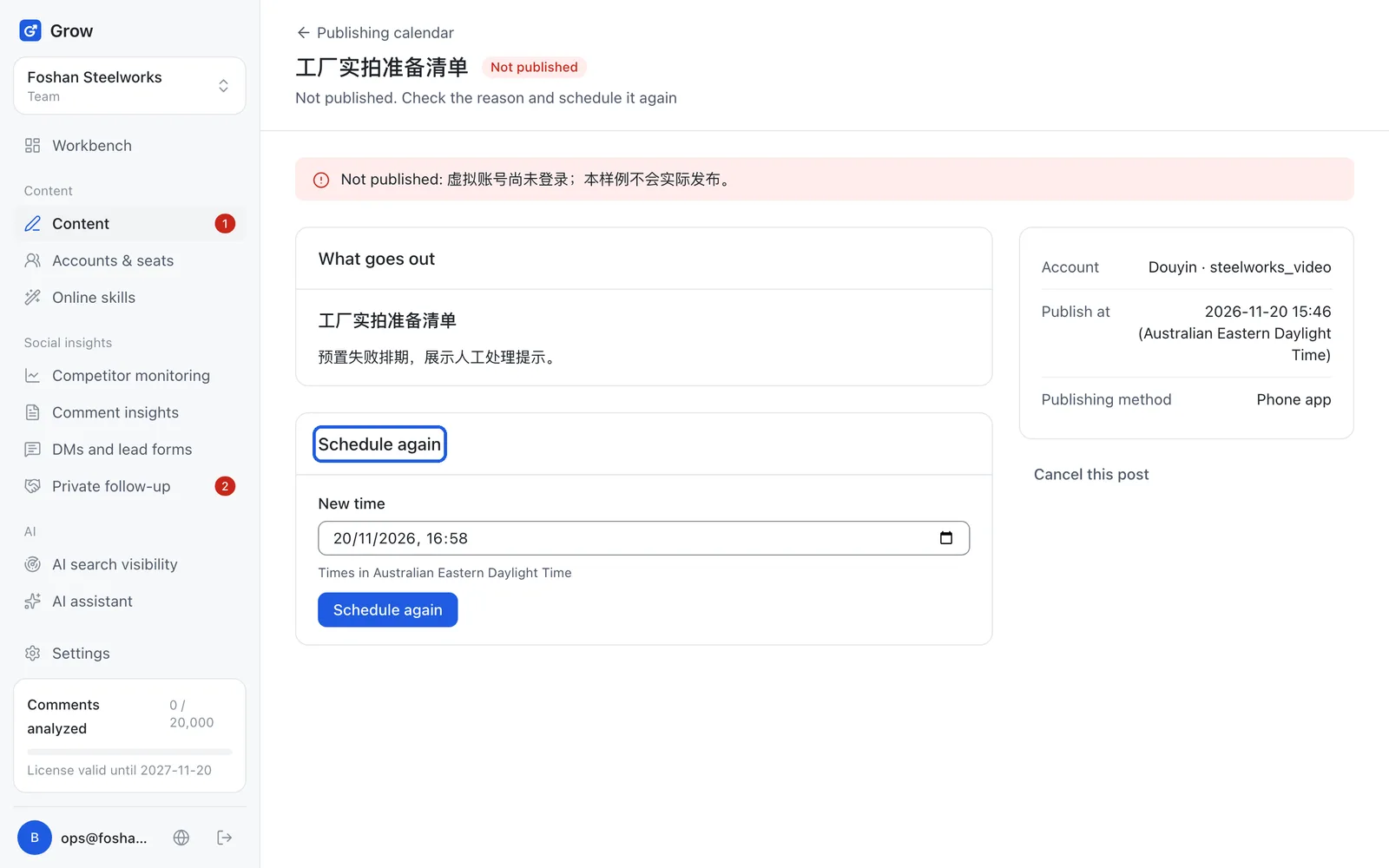
Tip: For posts sent with the extension or phone, if you see the platform did not take it, you can click "Mark as not published" yourself and write the reason.
Still stuck?
Message @JamesAI on X with a screenshot and we will take a look.