Install the browser extension
To post on Xiaohongshu and Douyin from a computer, install the Grow assistant extension. The full illustrated guide is on the "Browser extension" page of the Grow website.
After this chapter: your computer can fill your scheduled posts into the creator pages for you.
- Step 1
Do you need it?
Install it if: you post on Xiaohongshu or Douyin from a computer and want Grow to fill in the title, text and pictures; you want views, likes, comments and saves read back into Grow; you answer DMs on TikTok or Instagram on the web. You can skip it if: you only post to YouTube, Google Business, Instagram or X (Grow posts those directly), or you only post from your phone.
Tip: The extension never presses "publish" or "send" for you. You check and press every one yourself.
- Step 2
Install it with the illustrated guide
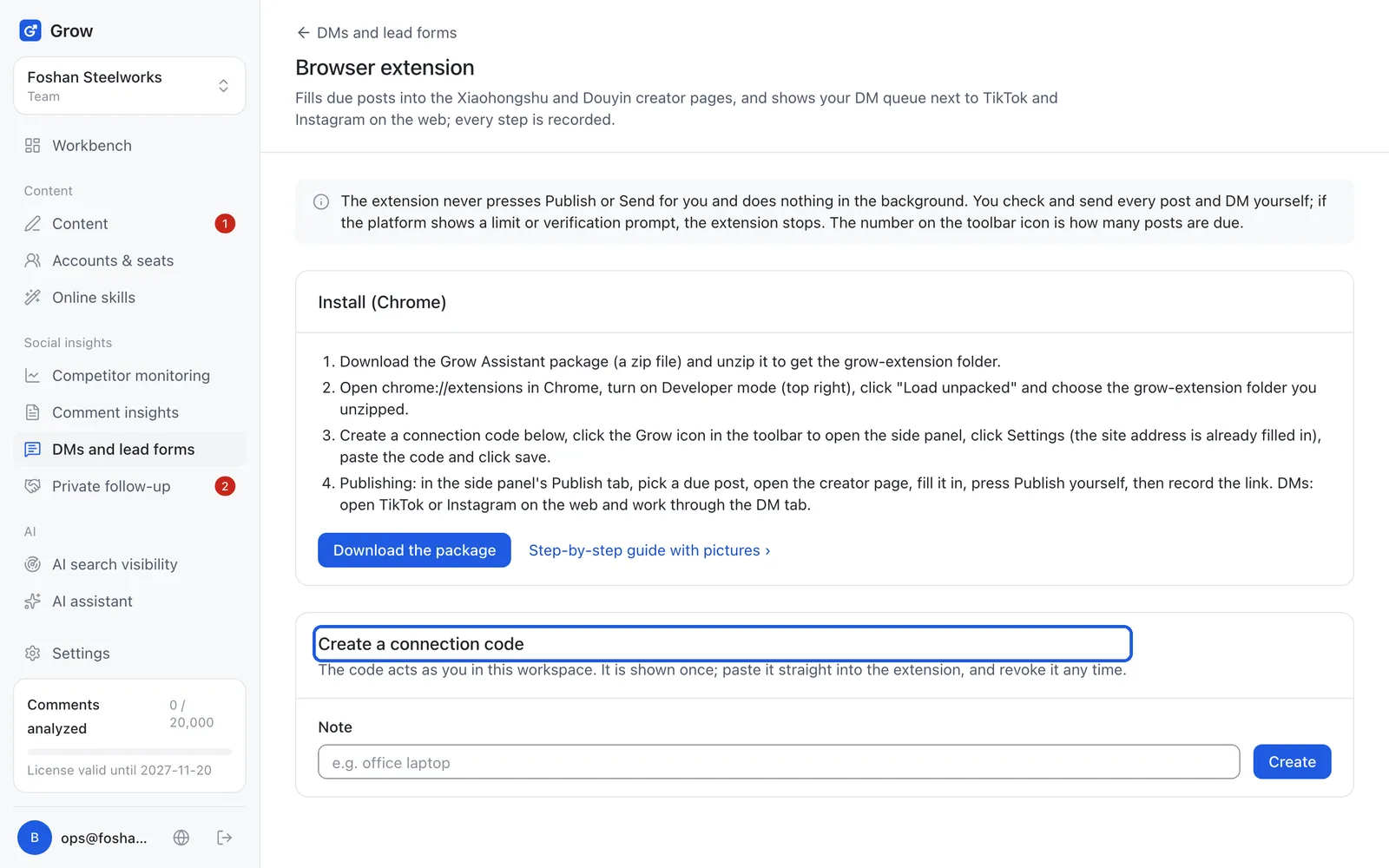
On the Grow website, open "Extension" in the top menu, click "Download Grow Assistant" and follow the 9 illustrated steps on that page. Use Google Chrome (Edge also works). It takes about 3 minutes and the key steps have screenshots.
Tip: The extension is not in the Chrome Web Store yet, so the steps turn on Chrome's "Developer mode", a switch built into Chrome; just follow the pictures. It does not harm your computer, and the extension only works on the Xiaohongshu and Douyin creator pages, TikTok, Instagram and heygrow.app.
- Step 3
Create a connection code in Grow and paste it into the extension
In Grow, open "Content → Calendar" and click "Browser extension" at the top ("DMs and lead forms → Browser extension" is the same page). Under "Create a connection code", add a note (for example "office computer") and click "Create". The code is shown only once. Click "Copy the code" under it (the site address below it is already filled in the extension), open "Settings" in the extension side panel, paste it in, and click "Save and connect".
Tip: If you change computers or stop using it, revoke that computer's code on the same page.
Still stuck?
Message @JamesAI on X with a screenshot and we will take a look.