Make a piece of content
Note ideas, let the AI produce a draft, edit it by chatting, and send it for approval.
After this chapter: you have an approved post that is ready to schedule.
- Step 1
Note an idea
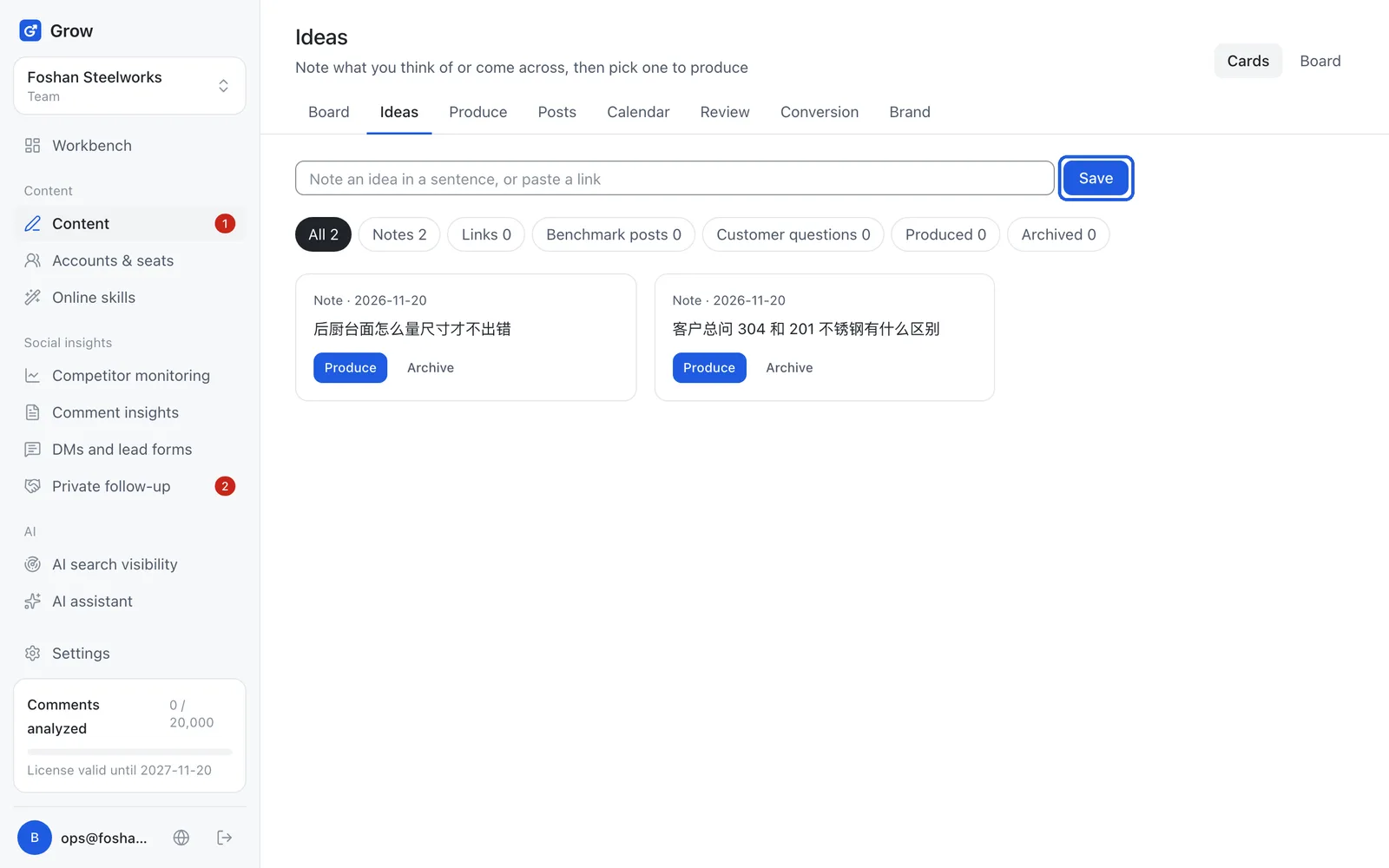
Click "Content" on the left, then "Ideas" at the top. In "Note an idea", write one sentence or paste a link, and click "Save". Write down whatever comes to mind and pick from it later.
- Step 2
Pick an idea and click "Produce"
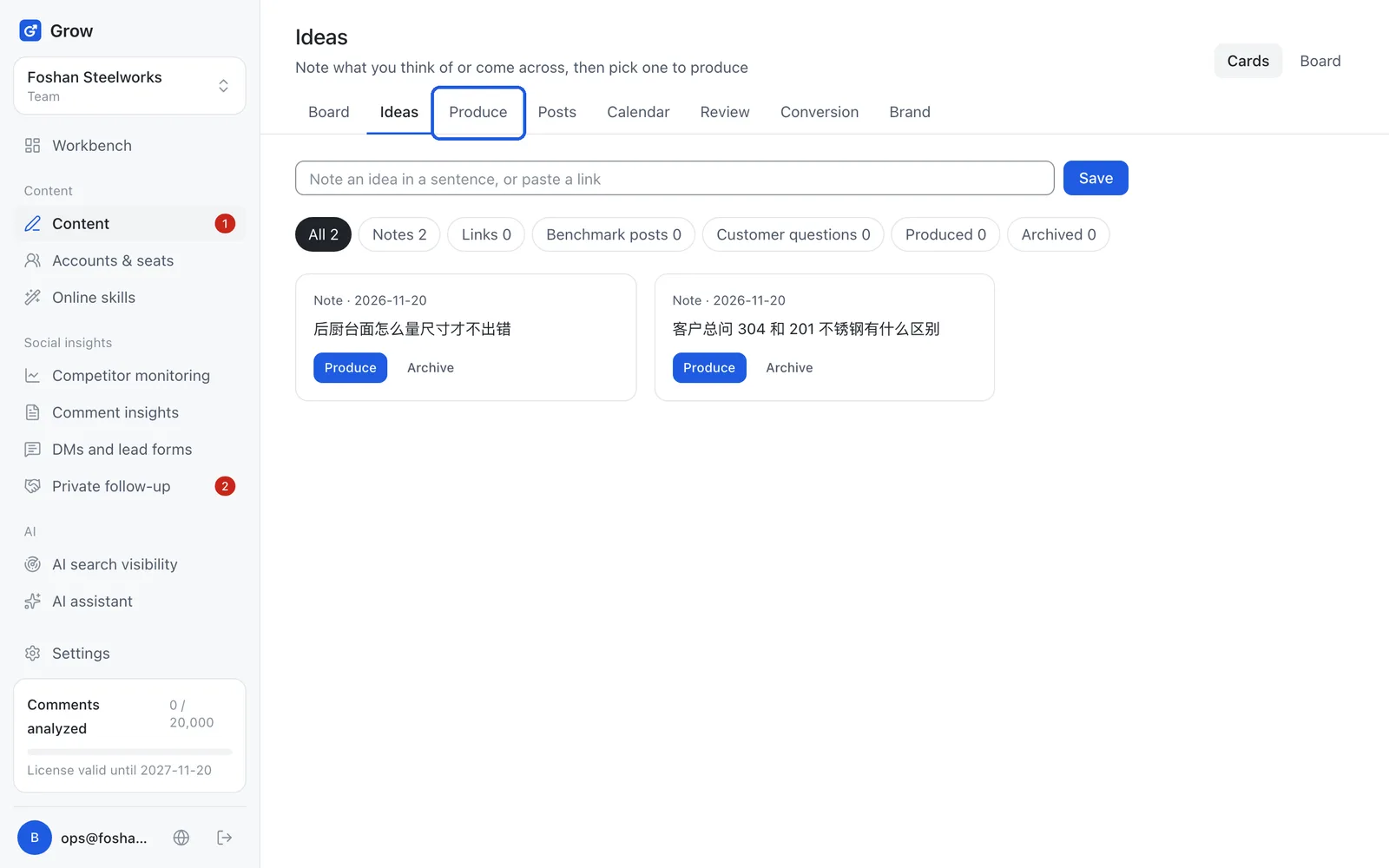
Click "Produce" on an idea card. The content production page opens with that idea filled in. You can also skip ideas and click "Produce" at the top.
- Step 3
Say clearly what to make
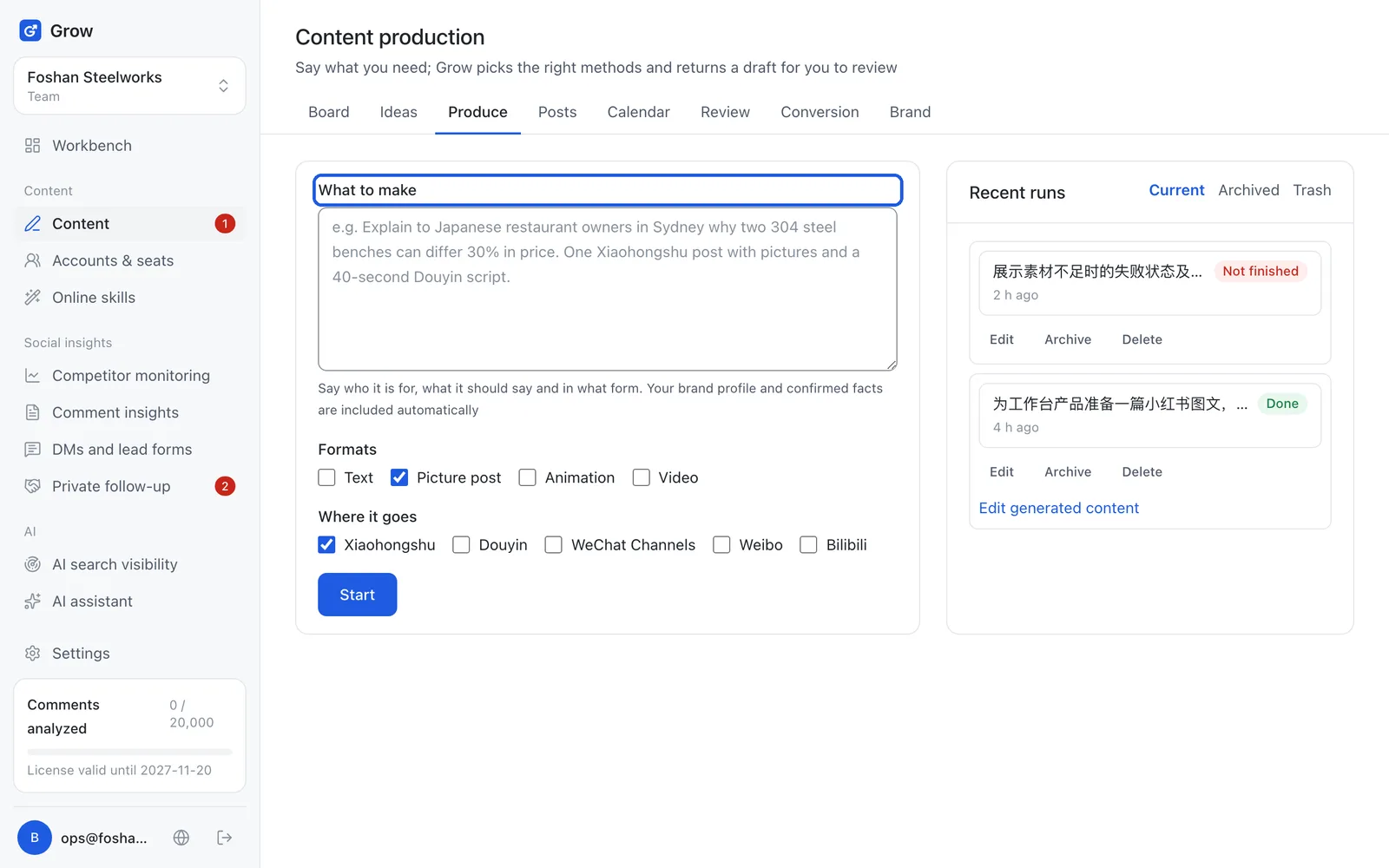
In "What to make", write who it is for, what it says, and what form it takes. For example: explain to Sydney Japanese restaurant owners why quotes for the same 304 steel bench can differ by 30%. One Xiaohongshu picture post. Your brand profile and confirmed facts are added automatically, so you do not need to repeat them.
- Step 4
Pick formats and platforms, then click "Start"
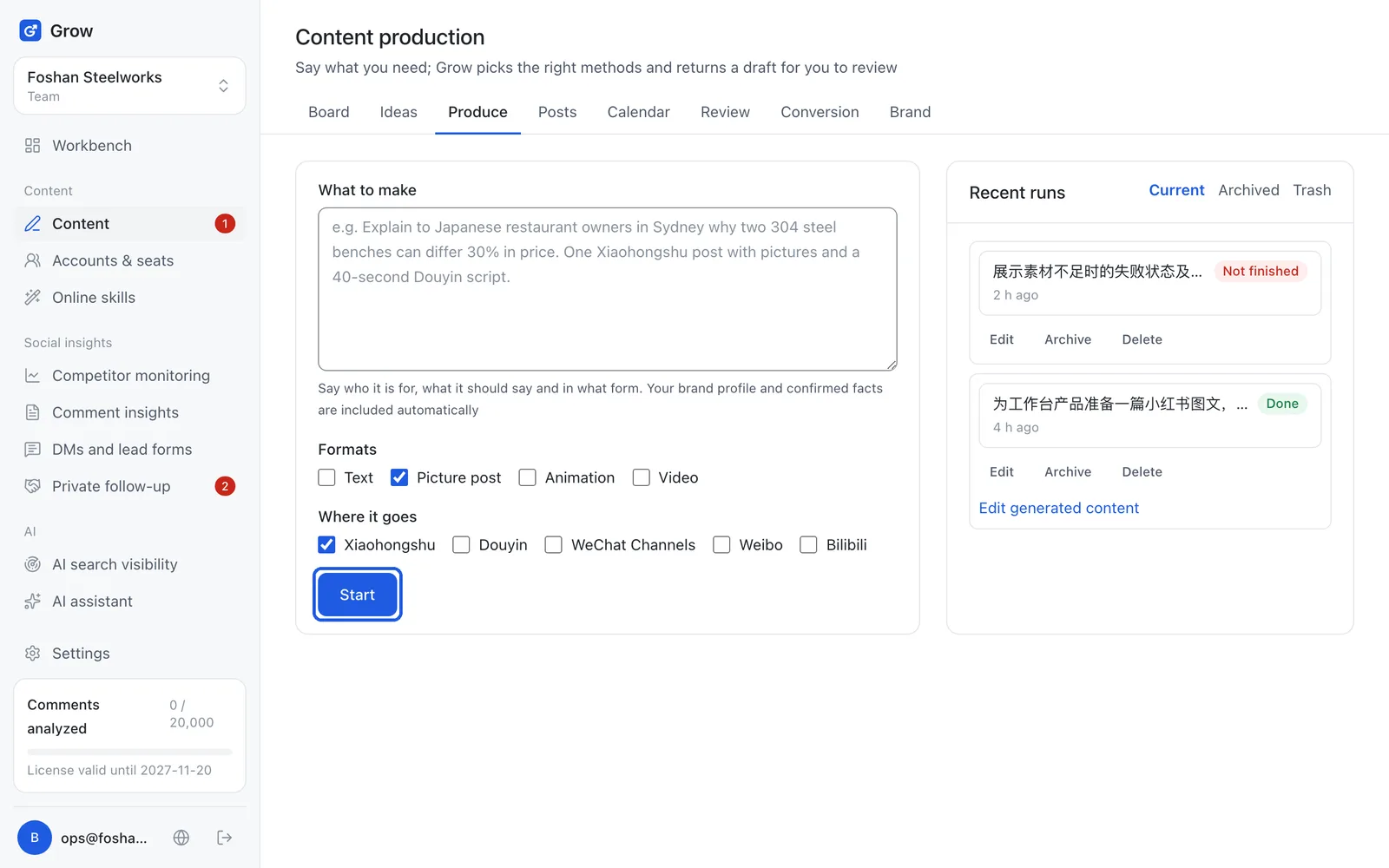
Under "Formats", pick text, picture post, animation or video. Under "Where it goes", pick the platforms (Xiaohongshu, Douyin, WeChat Channels, Weibo, Bilibili). Click "Start". It usually takes 5 to 20 minutes. The page refreshes on its own, so you can do something else meanwhile.
Tip: If the page says content production is not set up yet, contact us to turn it on. A run that does not finish does not count.
- Step 5
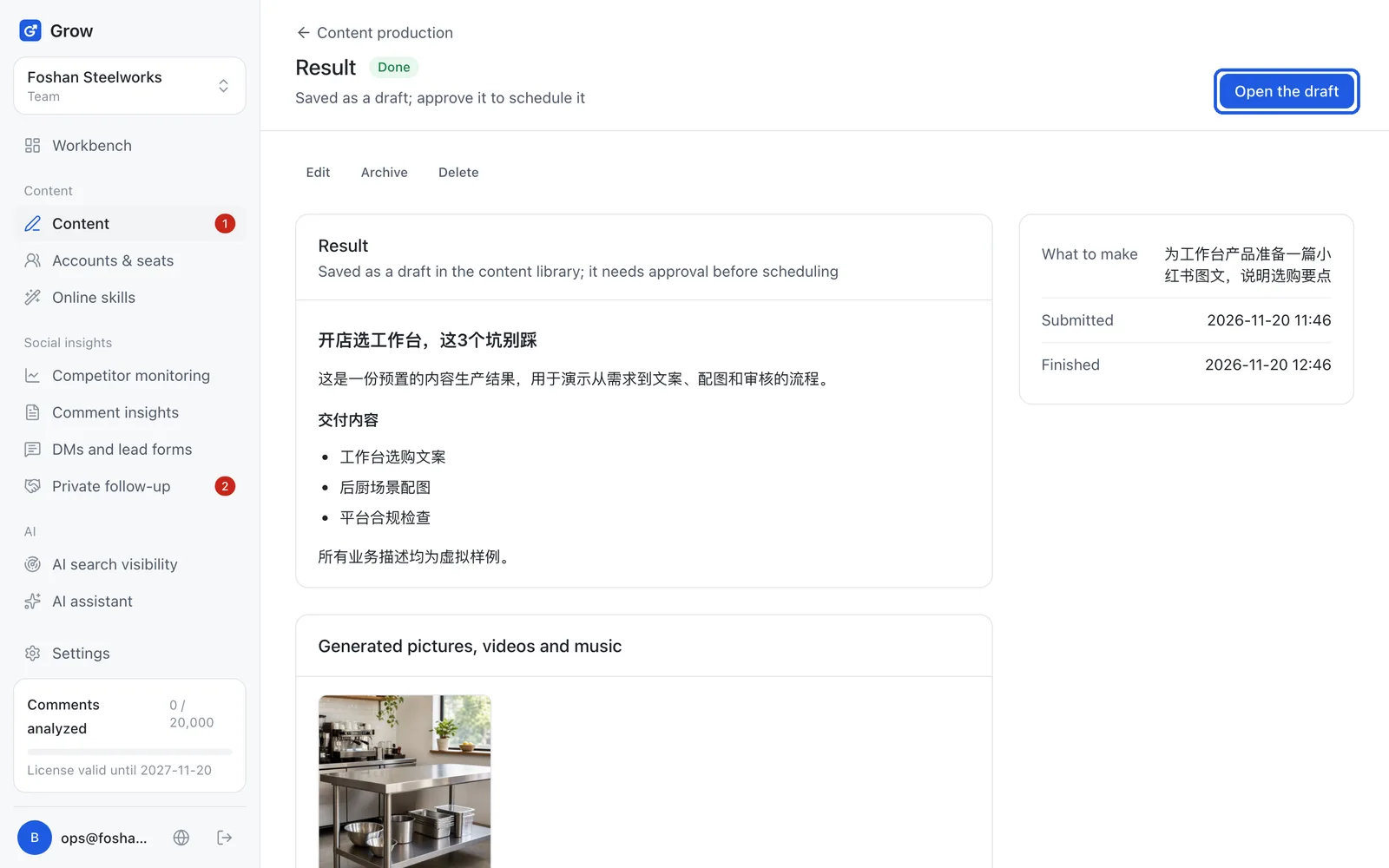
When it is done, click "Open the draft"
When the status turns to done, the draft page opens on its own if you kept the page open; if not, click "Open the draft". To find it again later, click the run's title under "Recent runs" on the "Produce" page. The result is saved as a draft. Nothing is posted yet.
- Step 6
Edit the draft by chatting
On the left, in "Revise by chat", just say it, for example "make the title shorter", and click "Send". The AI only changes what you mention. You can also click a ready-made button: shorter title, stronger opening, tighter text, more conversational. Every change is saved as a version, so you can undo.
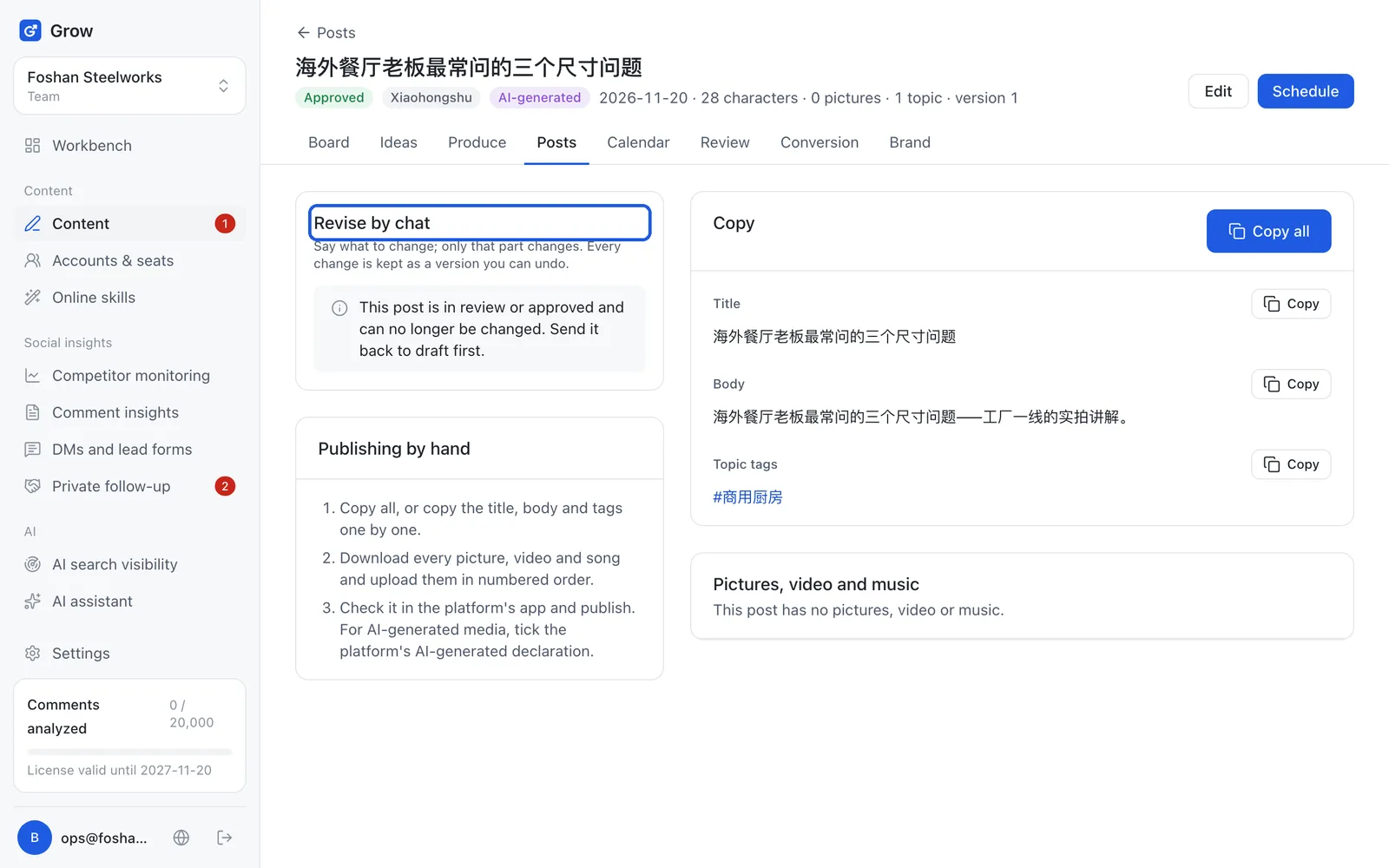
Tip: Each change counts as 1 assistant message (your plan's monthly allowance of AI work). No change, undo and your own edits do not count.
- Step 7
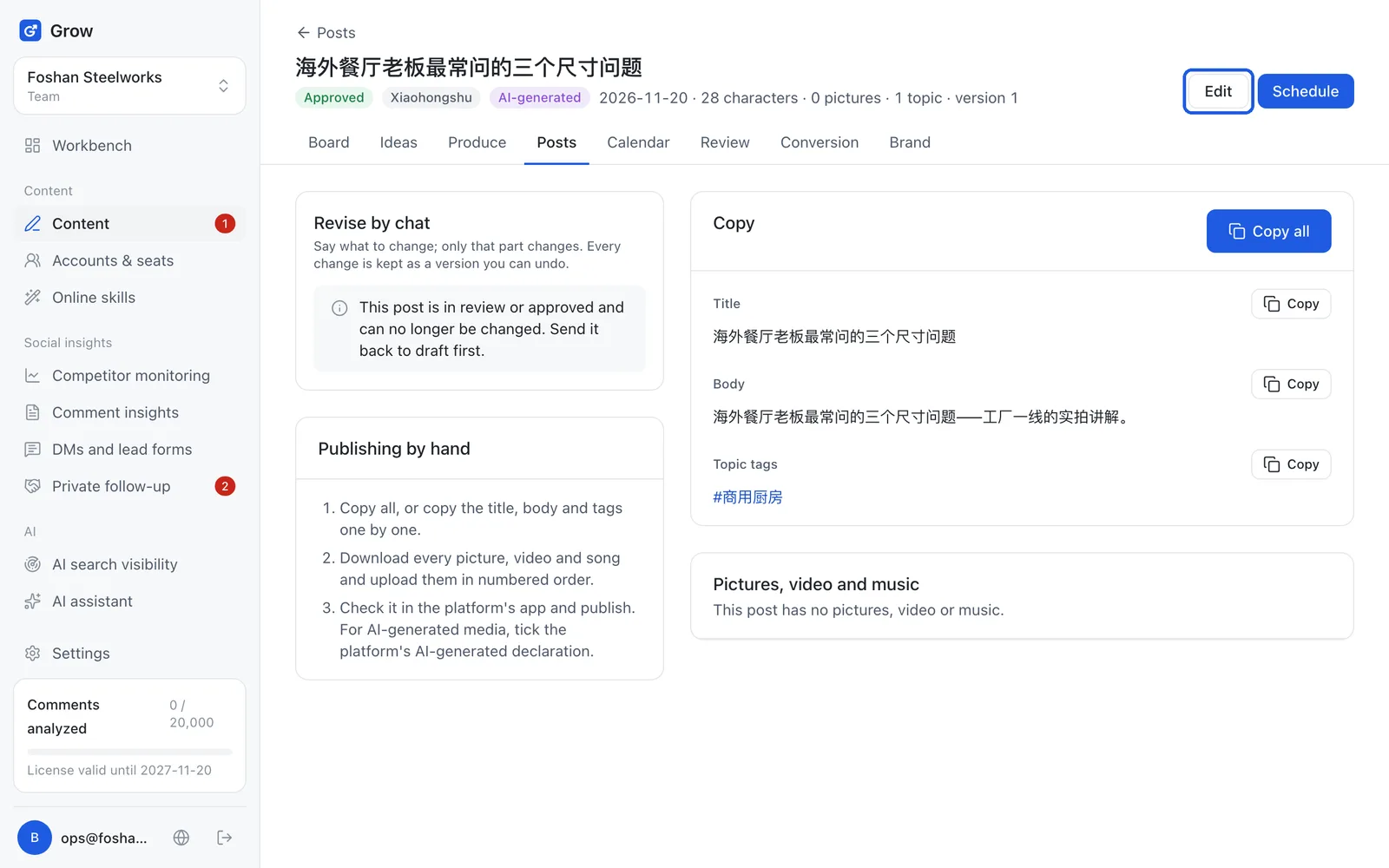
Click "Edit" to open the post's detail page
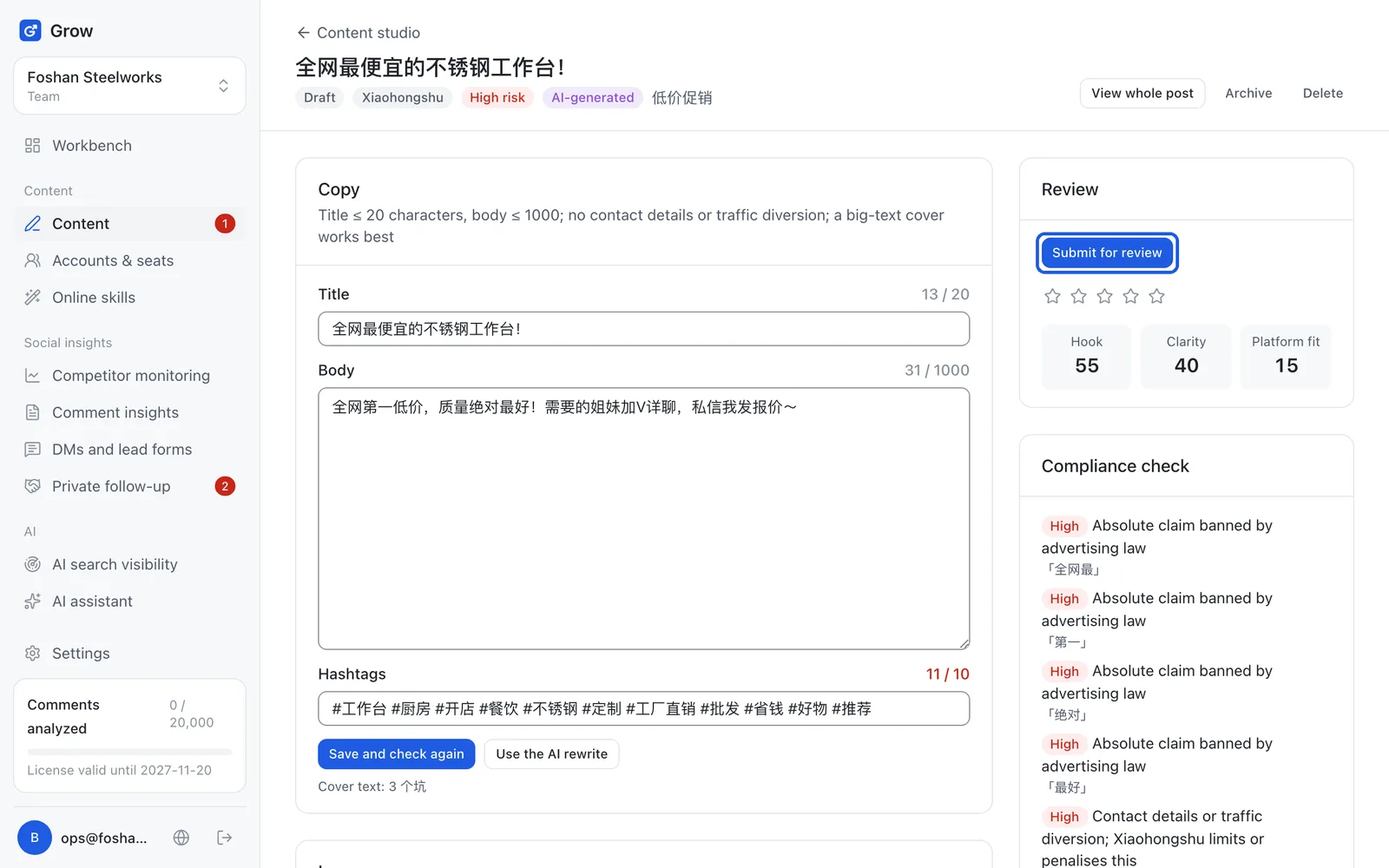
When you are happy, click "Edit" at the top right to open the post's detail page. The page shows "← Content studio" at the top left; the "Compliance check" box on the right lists problems Grow found automatically (it checks again when you submit), such as words advertising law does not allow (like "best" or "No. 1"), a WeChat ID or phone number that sends people off the platform (platforms do not allow it), or a title that is too long.
- Step 8
Click "Submit for review"
When it looks right, click "Submit for review". Once submitted it cannot be changed. To change it, click "Back to draft" first.
- Step 9
An admin clicks "Approve"
An owner or admin opens the post, reads it and clicks "Approve", or clicks "Reject" and writes the reason. Approved posts appear under "Ready to schedule" in the calendar. A "Distribution: no publishers yet" box then appears; publishers are staff or partner creators who post for you, so if you post yourself, ignore it.
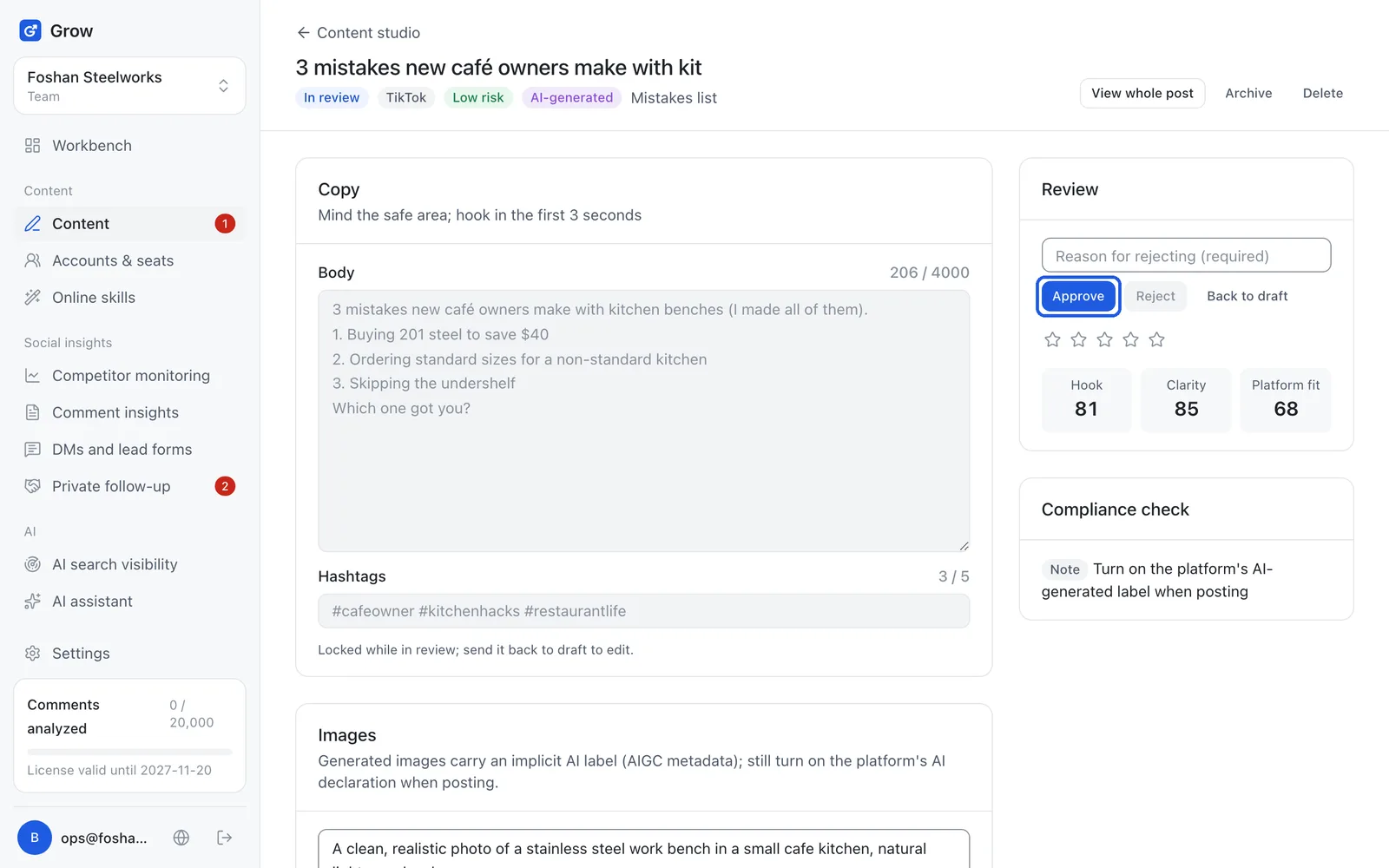
Tip: Members see "Waiting for an owner or admin to review". That is normal: only owners and admins can approve.
Still stuck?
Message @JamesAI on X with a screenshot and we will take a look.