Connect your platform accounts
Buy seats, add Chinese platform accounts such as Xiaohongshu and Douyin, or authorise YouTube, Google Business, Instagram and X.
After this chapter: your accounts are in Grow and you can schedule posts for them.
- Step 1
First, what is a "seat"?
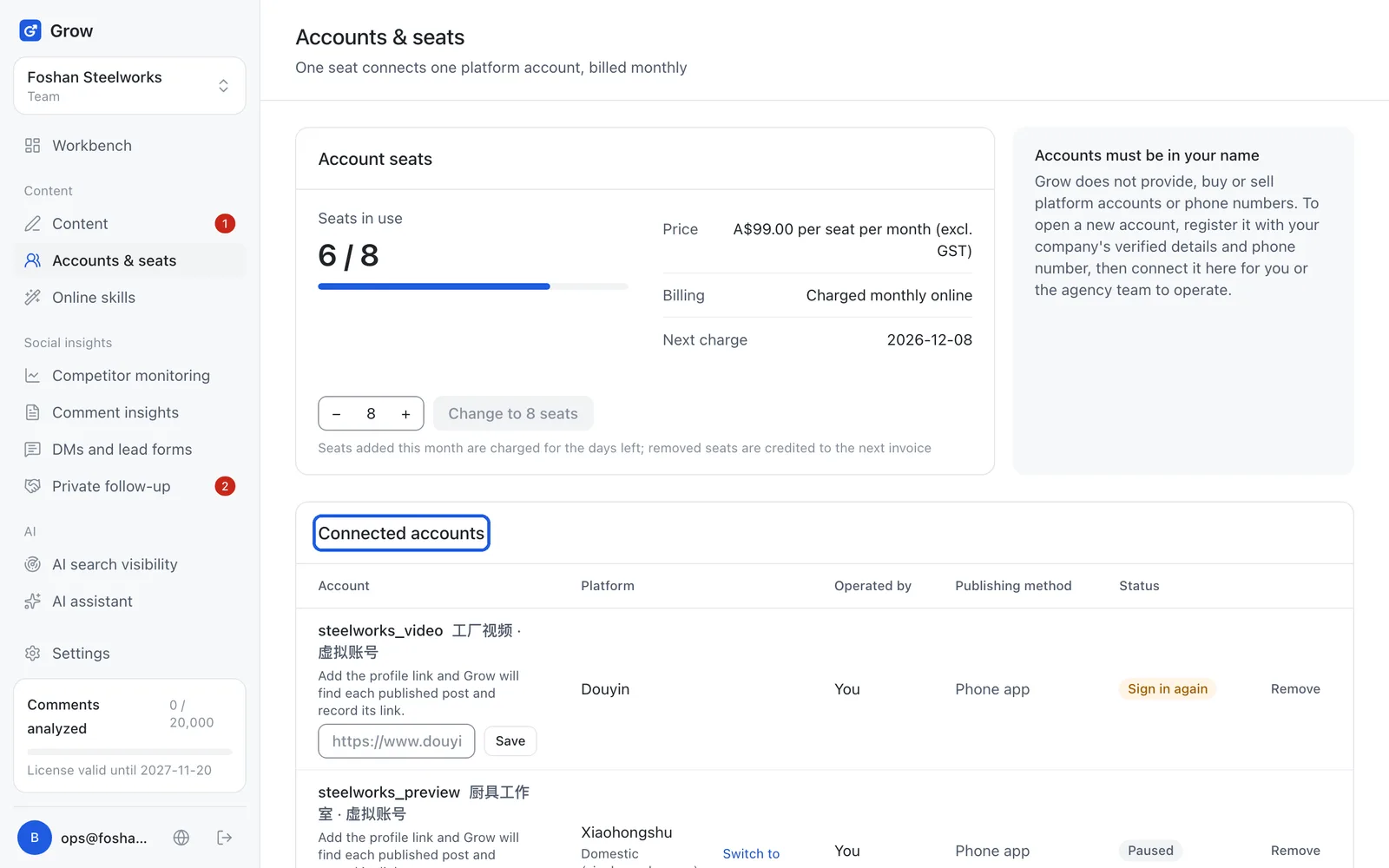
Open "Accounts & seats" on the left. A seat is one "place": one seat connects one platform account, billed monthly. Three accounts need three seats. "Seats in use 2 / 3" means 2 accounts connected and 3 seats bought. In "Account seats", use the plus and minus buttons to set the number. The first time, click "Buy N seats": you go to a payment page run by Stripe (an online payments company), pay by card, and it renews monthly. After that the same button says "Change to N seats", so you can add or remove seats any time; "Billing" says "Charged monthly online" with the next charge date beside it.
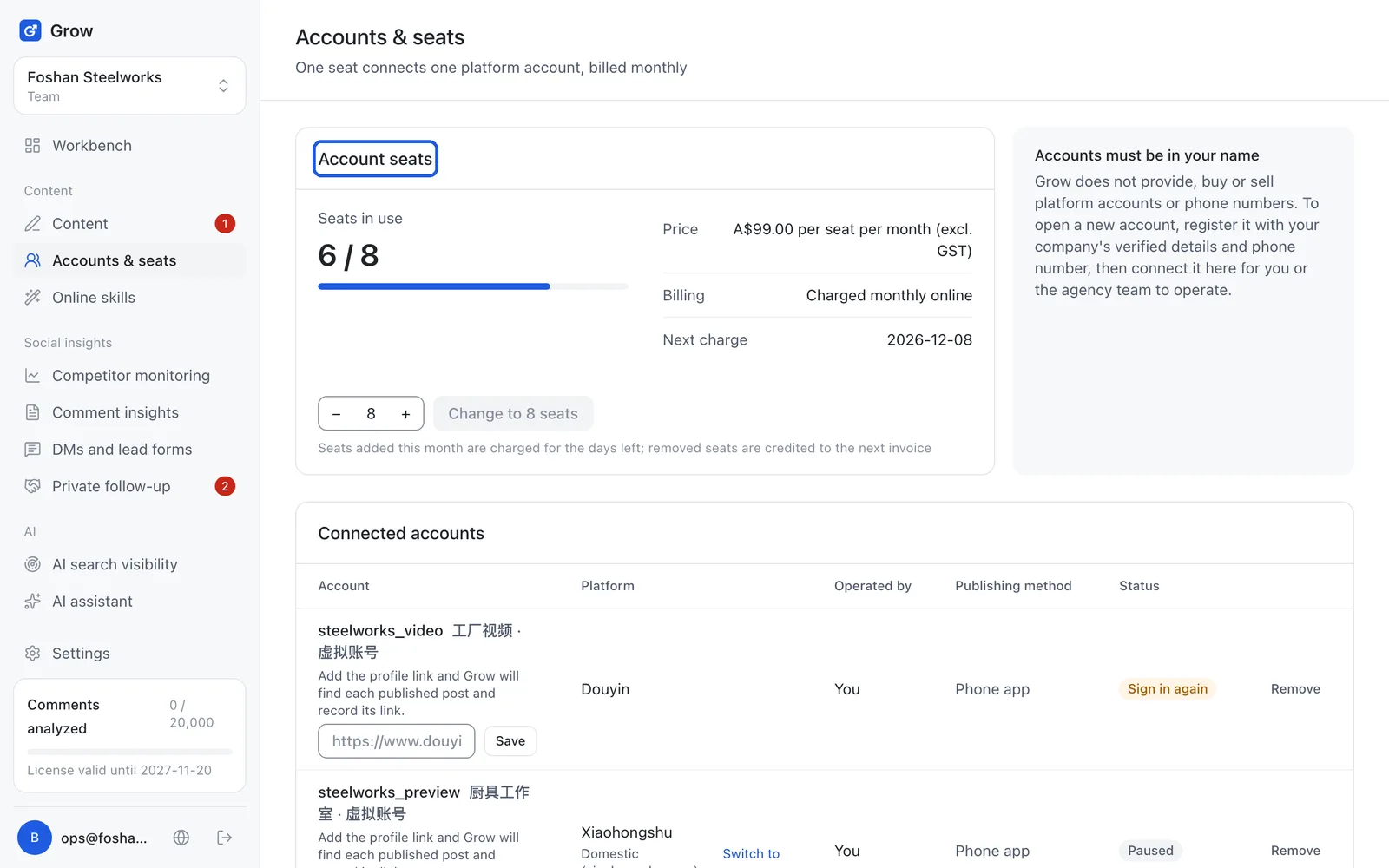
Tip: If the page says online purchase is not open yet, or you are billed by monthly invoice, contact us or your account manager to set up seats. Only owners and admins can change seats.
- Step 2
Connect a Chinese platform account (Xiaohongshu, Douyin, WeChat Channels, Weibo, Bilibili)
In "Connect account", fill in: Platform: Xiaohongshu, Douyin and so on Account: the account name shown on the platform Profile link and nickname: optional, they help you recognise it Who operates it: you, or an agency team Publishing method: extension-assisted, or phone app Tick "I confirm this account was registered with our company's (or my own) verified details and belongs to us" and click "Connect account".
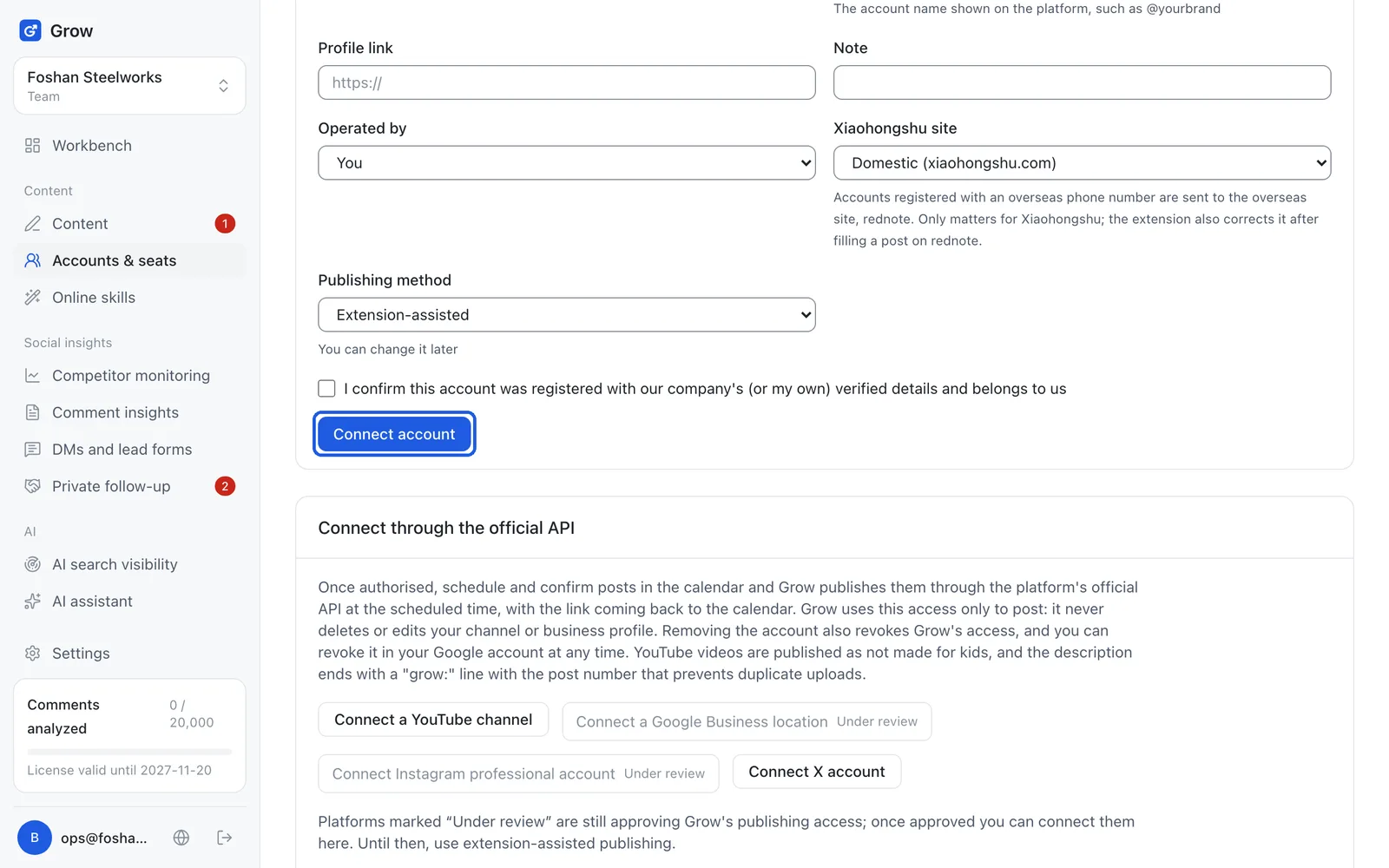
Tip: Extension-assisted: on a computer, Grow's Chrome extension fills in the title, text and pictures, and you press publish yourself. Phone app: copy the text and save the pictures on your phone, then post in the app yourself. You can switch between them any time. Grow does not provide, buy or sell platform accounts or phone numbers. The account must be in your name.
- Step 3
Overseas Xiaohongshu accounts: pick the right site
Xiaohongshu accounts registered with an overseas phone number are moved to the overseas site, rednote. When connecting, set "Xiaohongshu site" to the overseas site (rednote.com). If you pick the wrong one, you can change it later in the account list, and the extension switches it for you the first time it fills a post on rednote.
- Step 4
Connect YouTube or Google Business
In the official API section, click "Connect a YouTube channel" or "Connect a Google Business location" (Google Business is your shop on Google Maps). The official API is the channel a platform officially opens for software to post. These platforms do not need the extension: once you confirm a scheduled post, Grow publishes it at its time and the link comes back to the calendar on its own.
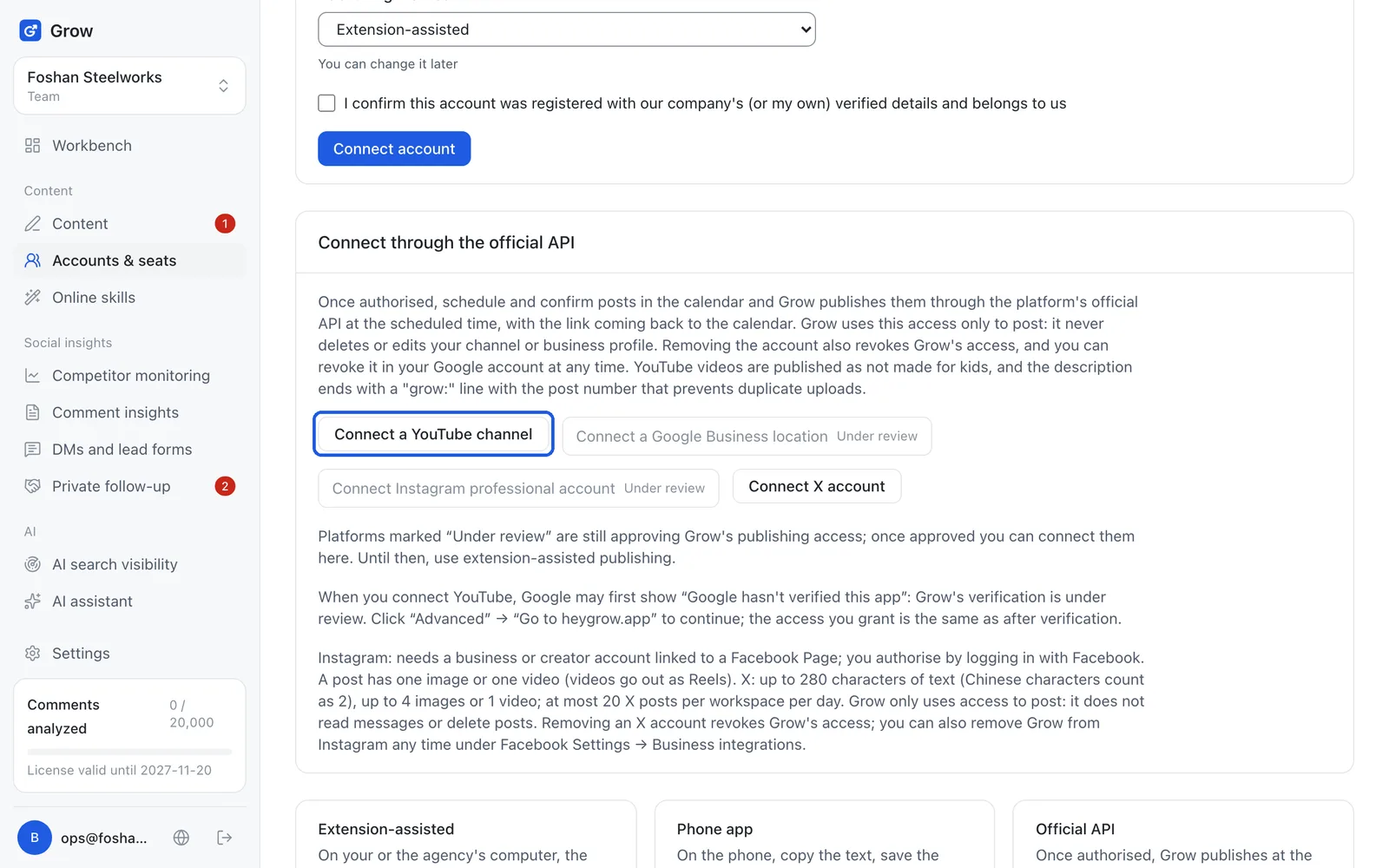
Tip: If the buttons are grey and do nothing, there is usually no free seat: buy a seat or remove an account you no longer use. Platforms whose button says "Under review" (currently Google Business and Instagram) are still waiting for the platform to approve Grow's publishing access, so you cannot connect them yet; use extension-assisted publishing until then. If it says the official API is still being set up, you cannot connect yet either. Please come back later.
- Step 5
Allow access on Google's page
You go to Google. Sign in with the Google account that manages the channel or location, tick every permission listed, and agree. Authorising means letting Grow post with your account. Grow only uses it to post; it does not delete or change your channel or business details. You come back to Grow when it is done. If that Google account manages several locations, you choose one to connect.
Tip: If a permission is left unticked, Grow cannot post and will ask you to connect again. When you connect YouTube, Google may first show "Google hasn't verified this app": Grow's verification is under review. Click "Advanced" → "Go to heygrow.app" to continue; the access you grant is the same as after verification.
- Step 6
Connect Instagram
First, in the Instagram app, switch the account to a professional account (business or creator) and link it to a Facebook Page. Then come back to Grow, click "Connect Instagram professional account", log in with Facebook and agree.
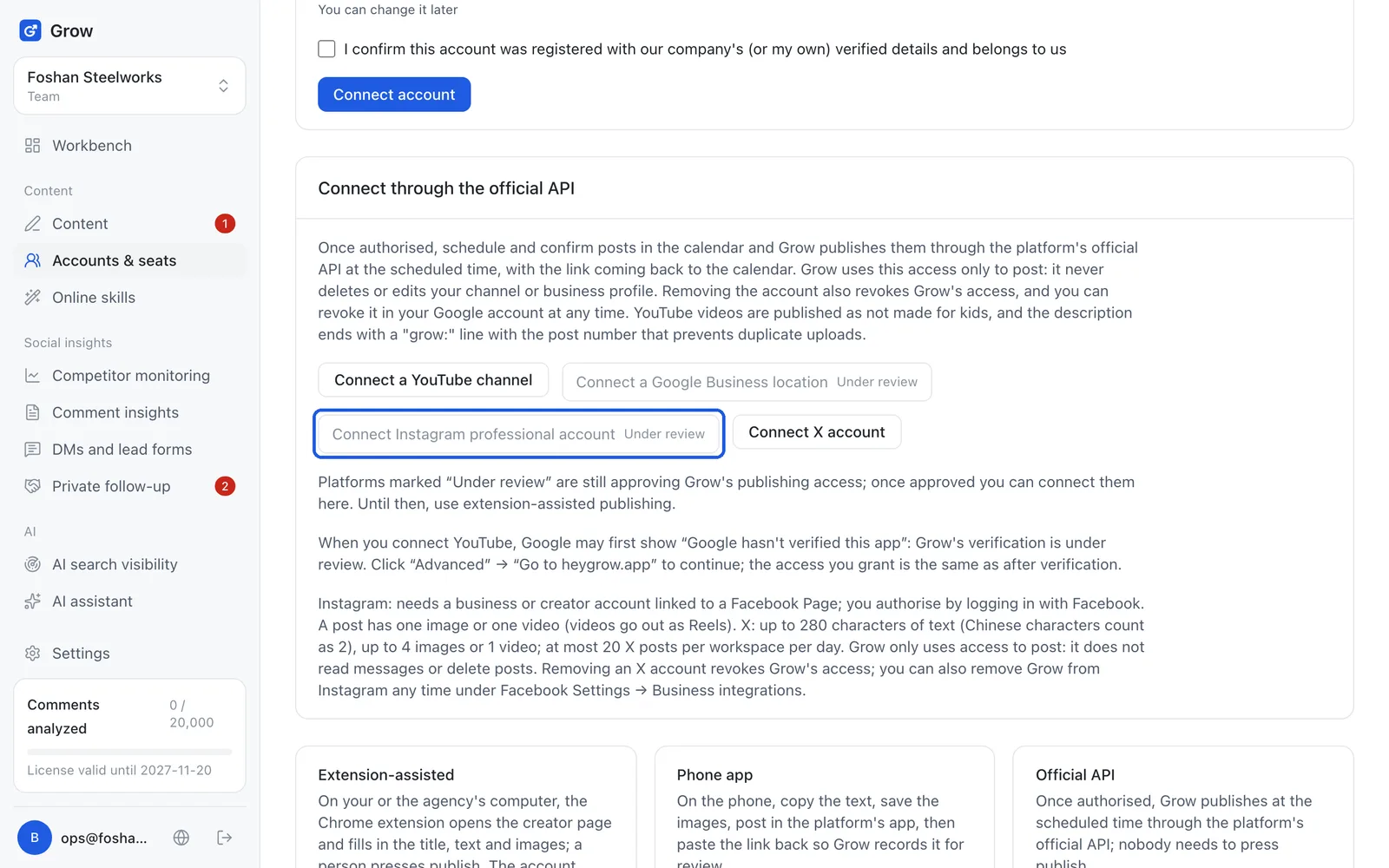
Tip: An Instagram post holds one image or one video. Videos go out as Reels. While the button says "Under review", Meta is still approving Grow's publishing access and you cannot connect yet; once approved you can click it here.
- Step 7
Connect X
Click "Connect X account", sign in on X's page and agree. You come back to Grow when it is done.
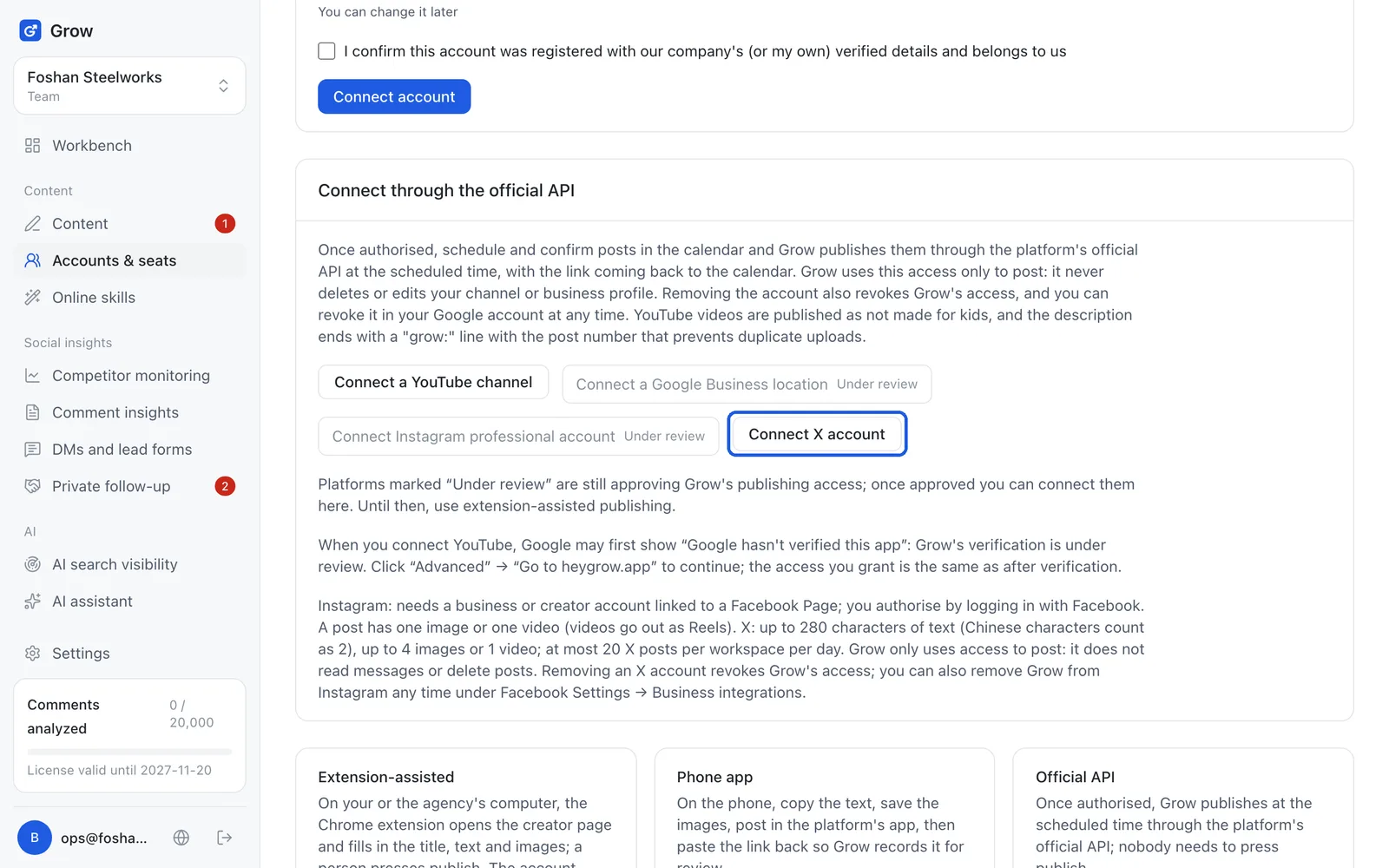
Tip: An X post has up to 280 characters of text (each Chinese character counts as 2), and up to 4 images or 1 video. Each workspace can post at most 20 X posts a day.
- Step 8
Check the account status
Connected accounts appear under "Connected accounts" with the status "Connected". If an official API account shows "Sign in again", its access has expired. Click "Re-authorise" next to it and go through the authorisation again. Click "Remove" on an account you no longer use, and its seat becomes free.
Still stuck?
Message @JamesAI on X with a screenshot and we will take a look.